 The Fridge
Help
How can we help?
Answers to the questions families ask most about The Fridge. These are the same answers you find in the app under Settings › Help and feedback.
Getting started
Quick start: I started the fridge. What do I do first?
The few things to know, in about 2 minutes:
- Turn on notifications. Without them, reminders can't reach you (see How do I turn on notifications?).
- Invite your family. Add each person and send them their own link. No passwords (see How do I add a person or invite someone by email?).
- Add your first reminder. Tap +, then type or say it: "Trash out Tuesday at 8".
- Remind someone else. Say who it's for: "Remind Mia to feed the dog at 5". Mia gets the alert.
- Check it off. Mark a reminder done when it's done. You can undo (see How do I mark something done, and how do I undo it?).
- Look at Today each morning. Everything for today, yours and the family's, on one screen.
Keep it going:
- Add the things that repeat. Chores, medicine, bills and birthdays. Add them once.
- Share the shopping list. Anyone adds, anyone checks off at the store. See 49.
- See it in your calendar. Show The Fridge in your Apple or Google calendar. See 29 and 90.
Were you invited to a fridge? See 107.
Related
- How do I turn on notifications?
- How do I add a person or invite someone by email?
- Can I just type (or say) what I want to add?
- How do I remind someone else?
- How do I mark something done, and how do I undo it?
- How do shopping lists work (several lists, checking, clearing)?
- How do I see The Fridge in Apple Calendar?
- How do I see The Fridge in Google Calendar?
- Quick start: I was invited to a fridge. What do I do first?
Quick start: I was invited to a fridge. What do I do first?
The few things to know, in about 2 minutes:
- Turn on notifications. Without them, reminders can't reach you (see How do I turn on notifications?).
- Look at Today. Everything for you today. Mark a reminder done when it's done (see How do I mark something done, and how do I undo it?).
- Add your own reminder. Tap +, then type or say it: "Soccer practice Thursday at 4".
- Remind someone else. Say who it's for: "Remind Dad to pick me up at 6".
Keep it going:
- Share the shopping list. Anyone adds, anyone checks off at the store. See 49.
- See it in your calendar. Show The Fridge in your Apple or Google calendar. See 29 and 90.
Did you start the fridge yourself? See 106.
Related
- How do I turn on notifications?
- Can I just type (or say) what I want to add?
- How do I remind someone else?
- How do I mark something done, and how do I undo it?
- How do shopping lists work (several lists, checking, clearing)?
- How do I see The Fridge in Apple Calendar?
- How do I see The Fridge in Google Calendar?
- Quick start: I started the fridge. What do I do first?
What is The Fridge?
The Fridge is one shared place for your family's reminders, appointments, birthdays, bills, renewals, events, shopping list and chat. When you make a reminder for someone, it pops up on their own phone, and you see when they tap Done. Everyone has their own color, and there are no passwords.
How do I get The Fridge app on my phone?
On a phone, The Fridge is an app, on iPhone and Android. Until we launch it is invite only: join the test on this website, and your invite email has the links to install it on your phone. Then open your invite link, or open The Fridge, tap I have a code and type your code.
On a computer, The Fridge works in the browser at checkthefridge.app/app.
Is there an Android app?
Yes. Until we launch it is invite only: open the Get the Android app link from your invite on your phone, tap Join group, then the Google Play link there, Become a tester, and install The Fridge (see How do I get The Fridge app on my phone?). Then open your invite link or sign in as usual.
It is the same Fridge, with a few extras for Android:
- Notifications, like on any phone.
- Lock with fingerprint: Settings › Privacy and your data. When it is locked, tap Unlock.
- Due today on your home screen: hold an empty spot on the home screen › Widgets › The Fridge.
- Hold The Fridge's icon for Say it, Type it and Shopping List.
- A Say it button in Quick Settings: pull down from the top, tap the pencil and drag The Fridge in.
- Scan a bill or receipt (see Can I add a bill or a receipt from a photo?) and the 🎤 in Add (your voice goes to Google to become words; the first time it asks).
- Location (where everyone is), leave/arrive reminders and Share where I am (see 52, 92). While you share, Android shows a small notification "The Fridge is sharing where you are".
Related
How do I join with an invite link or code?
First get the app (see How do I get The Fridge app on my phone?). Then:
With a link:
- Open the link on your phone. It opens in The Fridge app.
- You see "Join <family> as <your name>". Pick your color, a color for the app and the text size.
- Tap Join the family, then follow the short welcome steps.
With a short code:
- Open The Fridge. On the welcome screen, under I have a code, type the 8-letter code (like ABCD-EFGH).
- Tap Continue, then Join the family.
Related
My invite link expired or opened in the browser. What now?
Opened in the browser: tap Open in the app on that page, or open The Fridge app, tap I have a code and type the short code from your invite. No app yet? The same page has Get the app.
Expired: an invite works for 7 days. Ask an Admin to open Settings › Fridge and people, tap Manage <your name> and tap Re-send invite. You get a new link and code, and the old ones stop working.
Do I need a password?
No. You join with your own invite link or short code, and your phone stays signed in (for about a year after you last used it). In the iPhone or Android app you can add a lock if you like: Settings › Privacy and your data › Lock with Face ID (iPhone) or Lock with fingerprint (Android).
I got a new phone. How do I sign in again?
The quickest way: on the new phone, open The Fridge and, under Been here before?, tap Sign in with Face ID or Sign in with email. Face ID works if you turned it on before and the new iPhone uses the same Apple ID. Email sends a 6-digit code to the email you checked in Settings › Your account (under Sign-in and recovery).
If you still have your old phone or a computer that is signed in:
- There, open Settings, tap your name at the top (Your account) and, under Signing in, tap Sign in on a computer.
- Tap Show a code to type instead. A short code appears.
- On the new phone, open The Fridge, tap I have a code and type it. The code works once, for 10 minutes.
Nothing of that works? Ask an Admin: under Settings › Your account › Help someone sign in they pick your name and send you a new link, or read you a code to type.
Lost the old phone? Under Settings › Your account › Phones and computers signed in you can tap Sign out next to it.
How do I turn on notifications?
In the iPhone or Android app (see How do I get The Fridge app on my phone?):
- Open Settings › Reminders and alerts.
- Tap Allow notifications, and tap Allow when your phone asks.
- Tap Send test notification to check.
If you tapped "Don't Allow" by mistake, turn it back on in the phone's own Settings › Notifications › The Fridge.
Today
What does the Today screen show?
At the top: the date, Today, the chat button (with the number of unread messages) and For me / All with how many items are on today. For me shows what is for you; All also shows the reminders you sent to others, each in its own day.
Then everything that needs you, in order: Overdue, Today, Tomorrow, Later, Location reminders, Bills and dates (renewals, bills, subscriptions and birthdays) and Done today. Under that is Quick access: Finish setting up (while steps are left), your shortcuts and Your fridge in 1995. When someone has filled in What's for dinner for tonight, a slim line with it shows above the sections (tap it to change it; switch it off in Settings › Look and feel › Today page). History and Recently deleted are on Apps.
A round check on your own reminders marks one done in one tap (with Undo).
Each section has a plain heading and is always open. Overdue and Today show everything. The other sections show 5 at first: tap Show 5 more under the list to add the next five (it says Show 3 more when only three are left), and Show fewer to go back to 5. Each section remembers this only until you leave Today.
Related
What is the difference between Today, Tomorrow, Later and Bills and dates?
- Overdue: the time has passed and it is not done yet.
- Today, Tomorrow, Later: your reminders and events, by the day they are due. Later is anything after tomorrow (events up to two weeks ahead).
- Bills and dates: things with a date that are not ordinary reminders: your next renewals, bills and subscriptions due in the next 2 weeks (and bills that are late), and the next birthdays.
How do I mark something done, and how do I undo it?
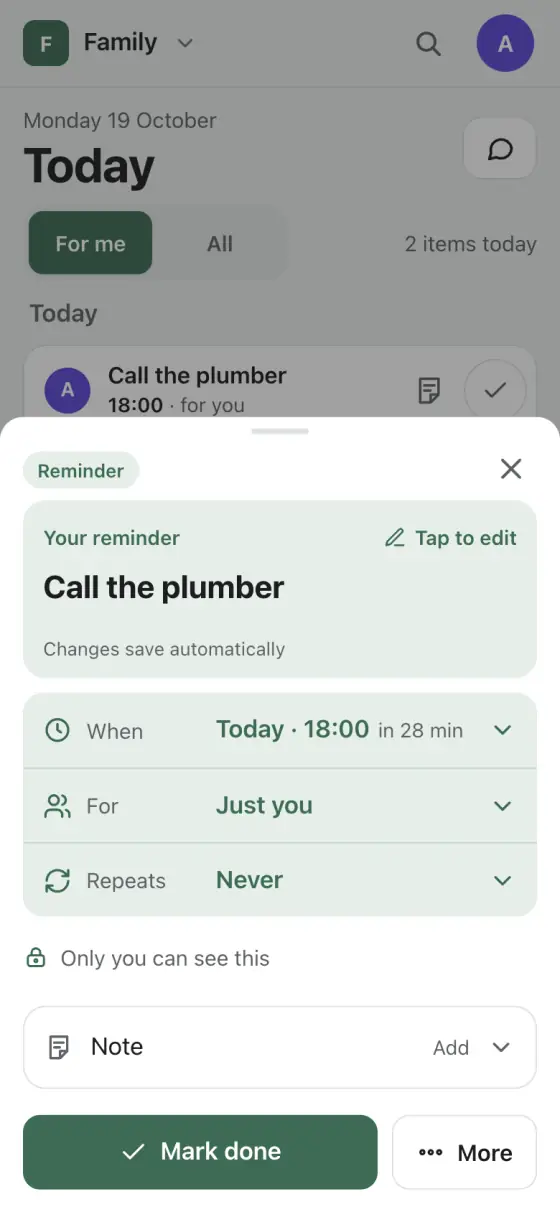
- Tap the reminder on Today.
- Tap Mark done (for a medicine it says Taken). On a computer there is also a Done button right on the row, and the alert on your phone has a Done button.
- For about 5 seconds you see Off the fridge · Undo. Tap Undo to put it back.
Missed the Undo? Tap it under Done today and choose Put back on the fridge. This only works for a one-time reminder that was for you. A repeating one simply comes back at its next time.
How do I snooze a reminder, or change it?
- Tap the reminder on Today.
- To change the words, tap them and type. To change the time, tap the day under When and pick a day (More dates for later ones; Any time or No date under the days), or tap the time and turn the wheel. Tap Note, For or Repeats to open them right under themselves. Nothing changes until you tap Update (next to Mark done; it lights up once you changed something). If you close the reminder with changes, it asks Save your changes? (Update or Discard); Mark done saves your changes first.
- Once a reminder is due, tap Snooze (a row near the bottom that opens its times), then 10 min, 1 hour, Tonight (8 pm, offered until 7:50 pm), Tomorrow (your morning time) or Other… (pick a day and time).
Changing the time of a repeating reminder moves every next time too; Remind me later only moves this one. Tap For to check who it is for and Repeats to choose how often, right there. ••• at the top left has Change kind… (the whole form), Freeze it and Delete. Once a medicine dose is due, Remind me in 15 min or 1 hour sits under Taken. On the alert itself, Snooze uses your choice in Settings › Reminders and alerts › Snooze › Snooze for. You set what "Tomorrow" means there too.
Where are the reminders I sent to other people?
Tap Everyone at the top of Today. The reminders you made for other people then show in their day (Today, Tomorrow, Later) until the person taps Done, and then you see who did it and when. Once one is due and still not done, tap it and choose Send a gentle reminder (you can do that once). Chores are not here, they sit in the day they are due.
Can I change what the Today screen shows?
Partly. The to-do sections always stay and always show in the same order. You can change:
- For me / All at the top (remembered on this phone or computer).
- Show 5 more / Show fewer under a section (Tomorrow, Later, Bills and dates and the rest) to see more of it for now.
- Quick access at the bottom: tap Edit, then check up to 8 shortcuts (Shopping List, Bills, the Private vault, What's for dinner and the rest of Apps). Drag the dots on the right of a shortcut to change the order, then tap Done. It starts with Shopping List, Sticky Notes, Location and Chores. A red number on a shortcut means something is waiting for you: things to pick up, sticky notes for you that you have not seen yet, or chores that are your turn today. Your shortcuts are only yours. On a computer, Quick access is under the reminders too, and every app is also in the list on the left, with the same red numbers. On a phone, Apps shows the same red numbers on the right of each app.
- Tap the fridge name at the top to switch fridge, or pick All my fridges to see everything together.
What is Week ahead?
Once a week (Sunday at 6:00 PM unless an Admin changed it) you get one alert: "Next week: N things on the fridge. Anything missing?" Tapping it opens Next week, Sunday to Saturday, where you can tap Add to <day> for anything missing, then All set for next week ✓. You can see who else has checked in. On Monday morning a short summary of the week follows.
An Admin sets the day, time and who gets it in Settings › Reminders and alerts › Week ahead. Anyone can switch off Ask me what's missing and Monday summary just for themselves there. You can also open Next week any time from the Calendar.
Reminders
Can I just type (or say) what I want to add?
Yes. On a phone, tap + at the bottom: the box is at the top of the Add panel. On a computer, use the white bar at the bottom of the page. Type it the way you would say it, then tap Save or press Enter. A card shows what it will add first, so nothing is saved by surprise.
The box knows which page you are on. Its example changes with the page, and a plain sentence becomes that page's kind of thing: on Shopping "lemons, feta" goes on the list, on Sticky Notes whatever you type becomes a note, on Birthdays "Grandma November 3, 1946" is a birthday, on the Calendar "Party Sat 8pm" is an event. Anything clear, like "remind me…", stays what it is. For example:
- "Dentist Tue 4pm": a reminder on Tuesday at 4 PM
- "Remind me and Emma that tomorrow at 11am we have to go to the doctor": "Doctor" for both of you, tomorrow at 11
- "call Dylan Thursday at 2pm": a Call reminder with Dylan's number from your Phonebook
- "swim meet Sat 8am at the Olympic pool": an event
- "buy milk and eggs": the Shopping list
- "note: the Wi-Fi box is under the TV": a sticky note
- "dinner: tacos, Emma cooks": What's for dinner
- "Lily's birthday March 12, 2010", "passport expires Feb 3, 2027", "electric bill $84.20 due the 20th", "Netflix $17.99 a month", "vitamins every morning at 8": a birthday, a renewal, a bill, a subscription, a medicine
A reminder shows as one sentence on two lines, for example "Remind you to Call Mom / today at 6:00 PM." The big microphone steps aside while you check it; Say it again starts over, and What you said (folded) has Edit original words. Tap a highlighted part to change it: who it's for (Just me, Everyone or pick people), the words (Done or Cancel), the day (the next two weeks, Choose month and year, or Someday) and the time (the wheels, or Any time). Each one opens in the same panel; Done applies it, Cancel changes puts it back. Type under the sentence changes what it is, More details opens the full form, and Save reminder saves it.
For the other kinds, tap any part of the card to change it before you save. The words: tap them to type. The round buttons under them: what it is (Reminder ⌄ can become an Event, a Sticky note, a Shopping list, or under More a Bill, a Birthday or a Renewal), the day (two weeks to pick from; a dot means that day already has something; Later date… for anything further), the time (a few quick times, or Other time…) and who it's for. A dashed button means the card could not tell, e.g. Add a time. More options opens the full form, already filled in (repeat, remind me earlier, a note). After saving, Undo takes it off again.
In the iPhone or Android app, tap the big microphone under the box and say it. Or press and hold + on any page to start talking straight away.
On a computer, type or say it in the white bar at the bottom of the page. What it understood rises above the bar with Save, and you stay on your page. On a page like Bills, a plain sentence becomes that page's thing, and one with a time, like “Dentist tomorrow 4pm”, stays a reminder. The button at the end of the bar is that page's own Add, and on Today it is + Add: click it and pick what to add (Reminder, Event, Private note and the rest).
Chrome, Edge and Safari show the microphone too. The first time, a note asks before it starts: to turn your voice into words, the browser sends it to Google (Chrome), Microsoft (Edge) or Apple (Safari). That is the only thing The Fridge ever sends to anyone outside. Firefox cannot do this, so there is no microphone there.
The Add screen does the same: type a whole sentence and tap Fill in on the line under it.
In the iPhone app your words are read on your phone and are not sent anywhere, unless you turned on AI and the app can't read the sentence itself, or you ask a question: then the words go to Claude, never your voice. In the Android app, Google turns your voice into words (a note asks the first time). It understands English only. If it gets something wrong, tap Not right? on the Add screen to send us that one sentence.
How do I add a reminder?
- Tap the + button at the bottom (on a computer, + Add at the end of the white bar at the bottom of the page), then tap Reminder.
- Type what it is about, like "Take out the trash".
- Pick a kind if you like (Medicine, Chore…) in the row of choices at the top. Otherwise leave it as Reminder.
- For: tap it and its choices open right under it. Pick yourself, someone else, several people or everyone, then tap Done.
- When: it starts in 1 hour. Tap the day or the time to change it. No set time? Tap Any time, At a place or No date (it waits in Someday).
- Add a Repeat or a Note if needed. Medicine, appointments, chores and calls keep their extra settings under More options.
- Tap the button at the bottom. It says who it reminds (like Remind me) and, under that, when and how often (like "Tomorrow 9:00 AM · every week").
Quicker: tap + and type (or say) the whole thing, like "Dentist Tue 4pm", then tap Save. On a phone, the line at the top of Today does the same. On a computer, use the white bar at the bottom of the page.
Related
What are the kinds of reminder (Medicine, Chore, Appointment, Call, Errand, Pet…)?
Each kind asks only what it needs:
- Reminder: the plain one.
- Medicine: the amount per dose, the times of day, how long, a nudge every 15 minutes until it's taken, and telling someone if it's missed. Stock, refills and prescriptions are on Apps › Medicines (see Where do I see my medicines, their stock and prescriptions?).
- Chore: one person does it every time, or two or more people take turns and the turn moves on by itself.
- Appointment: where, travel time (so it tells you when to leave), who is taking them, what to bring. Tap one on Today to change When, Where, Leave or Taking right there; Open in Maps opens the address.
- Call: who to call, with a button that rings them (see How do Call reminders work?).
- Pet: what the pet needs; can repeat every year.
- Home upkeep: things like an AC filter, every few months from the day it was done.
- Errand: anyone can tap I'll do it so two people don't both go; done by one is done for all.
- Homework: for one or more children, with the subject, the day it is due at school, an optional reminder, attachments and instructions (see How does Homework work?).
- Event opens the event form instead (a party or get-together with invites).
Related
Where do I see all the chores and whose turn it is?
On Apps › Chores. Every chore is shown once, on the day it's next due: Today, Tomorrow, the next few days by name, then Later. The badge on each row is the person whose turn it is, and the gray line says who goes after them.
- Done today lists the chores someone finished today, and who did it.
- Last 30 days at the bottom counts how many chores each person did. If you did someone else's turn, it counts for you.
- Tap a chore to mark it done. Tap When to change the days or the time, and Turns to change the order, add or take someone off, skip your turn or swap. Changes save by themselves. The popup also shows who did it last.
- Someone else's turn? Anyone on the fridge can tap Done for Emma (it counts as her turn, for you in Last 30 days). Once it is late you can also tap Skip Emma's turn: the next person gets it now and Annita gets hers again next time round. Annita is told either way.
- Tap + Add to make a new chore. Everyone on the fridge can see chores, but only the person whose turn it is gets the alert.
Where do I see my medicines, their stock and prescriptions?
On Apps › Medicines. It shows the medicines you take, in three views:
- Today: what to take now (tap the round ✓ for Taken, with Undo), what is later today, refills or prescriptions that need you, and what you recorded today.
- My medicines: each medicine once, with its amount, times, how many are left and its prescription date.
- History: the last 30 days: Taken at the time you took it, Skipped, or Not recorded when nobody checked it.
Tap a medicine for more:
- Mark as taken, Log a different time (if you took it earlier), or Skip this dose. A recorded dose has Remove this record and Change time taken.
- Stock (optional): switch on Track stock, say what you count (tablets, capsules, ml…) and how much one dose uses. Each Taken takes it off; Skipped changes nothing. Add a refill adds what you collected; Correct the count sets what you really have. Remind me to get a refill sends one quiet alert at about the number of days you choose.
- Prescription details (all optional): the number, prescriber, pharmacy, dates, repeats left, a photo and notes, and a reminder before the Valid until date. Using a repeat when you collect is a check you choose; collecting never renews a prescription by itself.
In a medicine's popup on Today, tap Times to add or take off a dose time (up to 4 a day) and How long to make it ongoing, a number of days or until a date. They save by themselves.
Only you see your stock and prescription details, even when someone else added the medicine for you. Alerts never say the medicine's name. The Fridge never works out a dose or checks a prescription: the numbers are the ones you type.
Related
How do I get a quick thought down? (My notes)
On Apps › My notes. Your notes are private: nobody else sees them, not even an Admin, and they are the same in every fridge you are in.
- Tap the mic at the bottom and say it. Your words show big in a card above the writing bar. Tap Done (or the mic again) to save, or Cancel. If you stop talking for 5 seconds, it saves by itself.
- Or hold the mic, talk, and let go to save. Slide your finger away before letting go to cancel.
- Or type in the writing bar. It grows as you write; Return starts a new line, and the arrow saves.
After saving, Edit and Undo show for a few seconds. Undo takes the note away for good.
Tap a note and it pops up, ready to change: tap in the words and type. It saves as you type; Done closes it. The tools above the keyboard:
- Checklist: the line gets a round check box (Return makes the next one, Return on an empty one ends the list). Tap a box to check it.
- Bullet list: the same, with dots.
- B: bold for the words you select.
- Undo: takes back the last change.
- The mic (at the end of the row): tap or hold it like the big one, and your words go where the cursor is. On an empty checklist line they become that item.
⋯ has Make it a reminder… (the + with the note's words in it), Copy and Delete (it goes to Recently deleted for 30 days). A note with a checklist shows how far you are in the list, e.g. "2 of 5 done".
You can save notes without a connection: they are sent when you are back online. The + also has Private note (under Choose a form instead).
How do I tell the family I'm away? (Trips)
On Apps › Trips: who is away, where, and when they are back. You type it in yourself; The Fridge never uses your location for a trip, and it sends no alerts about trips.
- Tap + Add (or the +). Choose Who's going?, type Where?, and pick the Leaving day and the day you are Getting home (that day counts as part of the trip).
- Times are optional: tap Add time under either day for a leaving or getting-home time, and × to take it away. Times are in your home time.
- Who can see this? Everyone in the fridge, Only you (you and the people going), or Choose people…. The people going always see their own trip.
- Add a Note if you like, then Save trip.
The Trips page shows Away now and Coming up (and trips that ended in the last 30 days under Past). While someone is away, Today shows a small line like "Emma is in Chicago · Home Fri, Oct 30 at 6:30 PM". Trips also show in the Calendar on each day away. Tap a trip to see it; the person who added it can Edit trip or Delete it (it goes to Recently deleted for 30 days).
How does Homework work?
On Apps › Homework you see every homework you may see: your own, or your children's if you are their parent. Pick Everyone or one child, then To do or Finished. To do is sorted by the day it is due at school: Past due, Due today, Due tomorrow, Later.
- Tap + Add: who it is for, the subject, what needs doing, the day it is due at school, Remind me, attachments and instructions. Everything is on one page.
- Remind me is a day and time to start working on it, separate from the due date. Tap it to pick the day and time, or No reminder. The children get it, and so do the parents who see the homework. A parent can switch theirs off with Homework reminders for me (on the Homework page, or in Settings › Reminders and alerts); the children always get theirs.
- Attachments: tap Attach files to add PDFs, Word (.docx) or Pages documents, or photos, up to 10, 10 MB each. Tap a file to open it; tap × to remove it. Nothing changes until you tap Save. Old .doc files and Word files with macros can't be attached; save them as .docx or PDF first.
- A child taps the round ✓ to finish their own part (with Undo). It leaves a quiet line in the homework's chat; nobody gets an alert. A finished part can be reopened from its details.
- Tap a homework to see it all in one popup: tap Subject, Due, Work on it or Instructions to change them right there, then tap Update (nothing saves until you do; Finished saves your changes first), and Doing it to see who has finished. Who is doing it and the parents who see it are under ••• › All settings….
Only the children on it, who made it and their parents see a homework and its files. Nobody else in the fridge, not even an Admin.
Related
Can I add a reminder with no time, or no date at all?
Yes, both.
- No time (Any time): pick a day, then Any time at the start of the times. It sits at the top of that day on Today, with one alert at your morning time (the one in Settings for "Tomorrow", 9:00 AM unless you changed it). It's never shown as overdue: if it isn't done, it stays on Today with "since Wed". A day with no time picked is saved as Any time too.
- No date (Someday): for ideas and "someday" things, like "Paint the balcony". Type "sometime fix the gate", "one day…" or "idea: …", or tap the day and pick Someday. It goes to Apps › Someday, with no date and no alert.
- From Someday, tap one and Take it out: pick a day, then a time or Any time. It becomes a normal reminder again.
- Tap one in Someday to change it right there: its words, For (who it is for) and Repeats, and the Note; it saves by itself. More has Mark done, All settings… and Delete.
- Any reminder's sheet has Move to Someday to put it away for later (not medicine, chores or appointments; on an ordinary reminder it is under More at the bottom). Undo puts it straight back.
- Someday only shows things for you, or ones you made for someone else. Nothing in it expires. The Sunday Next week page reminds you how many are waiting.
Related
Can I hide or reorder kinds I never use?
Yes, and it only changes your own phone's list.
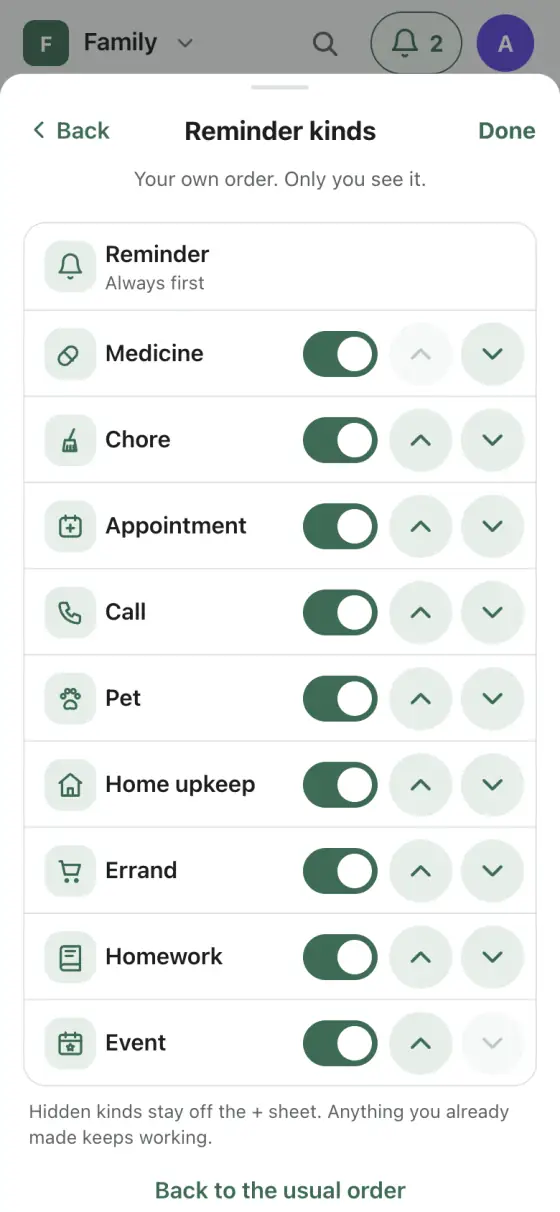
- Tap +, then Reminder, then tap Edit at the end of the row of kinds.
- On Reminder kinds, use the switch to show or hide a kind, and the arrows to move it up or down.
- Tap Back to the usual order to undo it all.
Reminder always stays first. Hidden kinds you already made keep working.
How do I remind someone else?
- Tap +, then Reminder, and type the reminder.
- Tap For and pick that person (or several, or everyone).
- Pick the time and tap Remind <name>.
They get a short alert straight away ("New from <your name>", with the day, the time and who else it is for; after their quiet hours if it is night), and it pops up again on their phone at the time, not on yours. Tap Everyone on your Today to see it in its day until they tap Done. You can only pick people on the same fridge.
Related
Who can see my reminders?
Only you and the people it is for. Everyone else in the family, Admins too, cannot see it. The one exception is a Chore: everyone on the fridge sees chores. The person who made a reminder (or an Admin who can see it) can change or delete it.
How do repeating reminders work?
In Repeat, choose Every day, Every week or Every month (Never is the default). When you tap Done, it moves on to its next time. If you don't tap Done, it stays on Today as Overdue: missed days don't pile up. A monthly one on the 31st comes on the last day of shorter months.
With Every week you can check more than one day: seven round day buttons (S M T W T F S) show the start day checked; check more, for example Sun, Mon, Wed and Fri for exercise at 7:00 AM. It then comes on each checked day at the same time, and Today shows the days in small letters. You can also just say it: "exercise Monday, Wednesday, Friday and Sunday at 7" or "every Mon Wed Fri".
Some kinds repeat in their own way: Home upkeep every few months from the day it was done, a Pet can repeat every year, and a Chore uses its own days.
Related
Someone is in another time zone. When does their reminder go off?
At the time you pick, on their own clock where their phone is. So "9:00 AM" for your daughter in Chicago rings at 9:00 AM Chicago time. The app shows both times before you save, like "9:00 AM Chicago time = 10:00 AM New York time". If you'd rather pick in your own time, tap Use my time instead. If they travel, the reminder follows their phone to the new place.
Can I get a reminder when I arrive at or leave a place?
Yes, in the iPhone and Android apps (not in a browser).
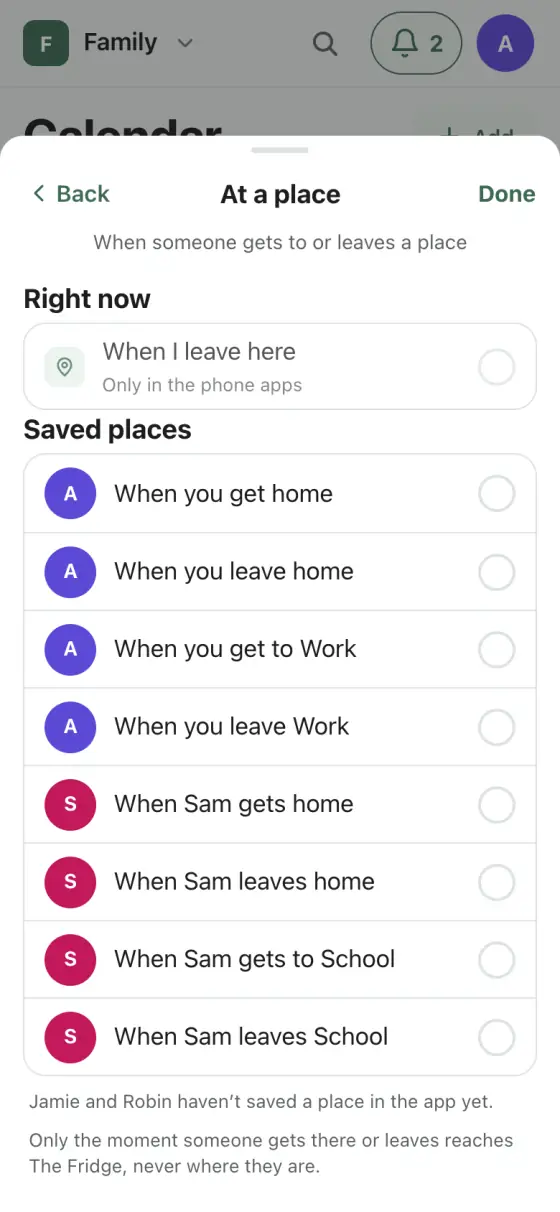
When you leave where you are now (a friend's house, a shop, the doctor's):
- Tap +, then Reminder, type the reminder, tap the When row and choose At a place.
- Tap When I leave here at the top, then Save.
- When you walk about 500 feet away, you get the reminder. It goes off once, then your phone forgets the spot.
You can also type or say it: "Take the umbrella when I leave here". On Today it shows as "When you leave here · set 2:05 PM".
For a saved place (Home, Work, Gym…):
- First, each person turns on Settings › Location and taps Add a place while standing there (up to 5).
- Then tap +, then Reminder, type the reminder, tap the When row and choose At a place.
- Pick, for example, "When Maria leaves Gym", and choose Just once or Every time.
The reminder goes to the person who arrives or leaves. The app never sees where anyone is, only that they got to or left a place.
Related
Can I make a reminder from a chat message?
Yes. When a chat message mentions a day or time (like "dentist tomorrow at 5"), a small Remind me? button appears under it. Tap it and the Add screen opens with the message and that time filled in. Check the details and save. You can also switch on Add the chat message to the note. It only works for times still in the future, and only for English words.
Related
How do Call reminders work?
- Tap +, then Reminder, pick Call and type what the call is about.
- Tap Who to call: pick someone from your Phonebook, from your phone's contacts (on phones that allow it), or Someone new (check Add to my Phonebook to keep them).
- Pick when, and repeat if you like.
On Today the row says "tap to call". Open it and tap Call <name> to ring them. When you come back to The Fridge, it asks Back from the call? with Done or Not yet. It never marks the call done by itself. In the iPhone app, the alert has Call, Snooze and Done buttons too.
Calendar
What do Day, Week and Month show, and what do the dots and squares mean?
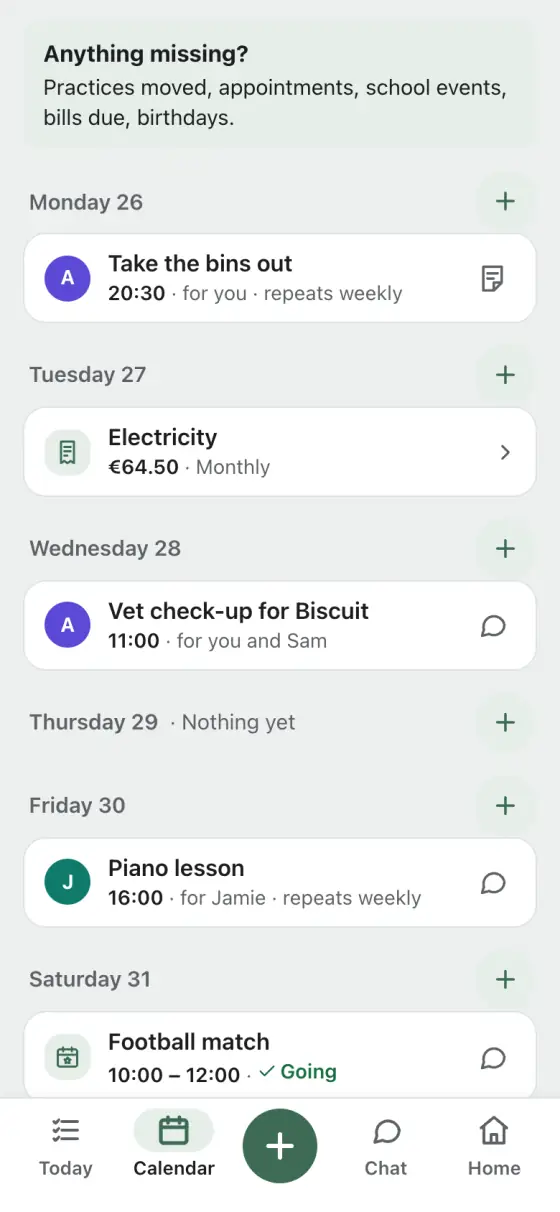
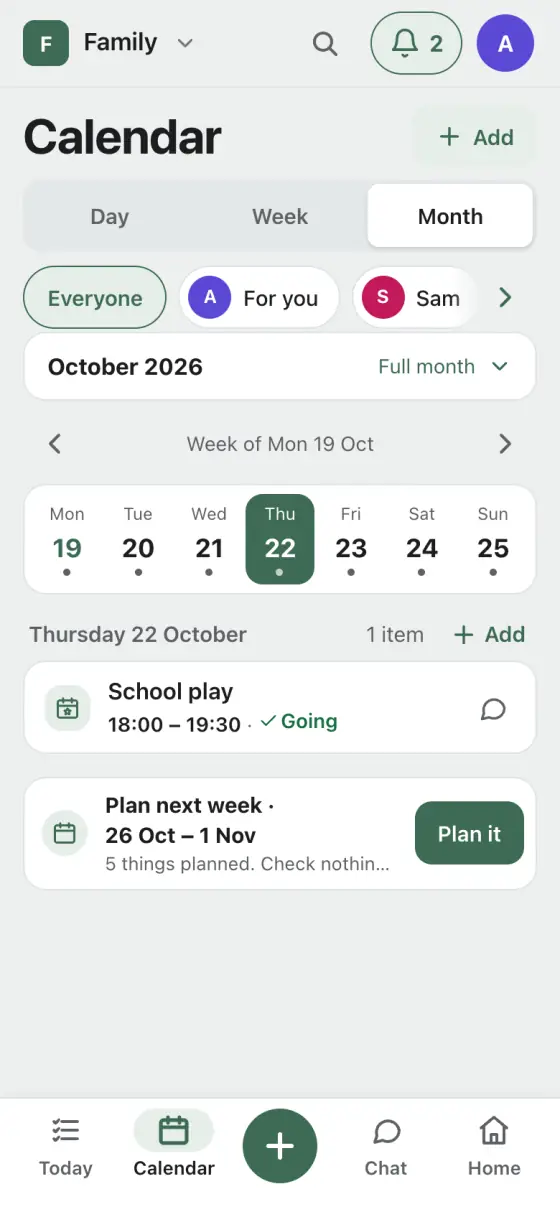
Tap Calendar in the bottom bar, then pick Day, Week or Month at the top. Use the arrows on either side of the month (or week, or day) to move back or forward; when you have moved away from today, a Today button next to Day / Week / Month jumps back.
- Month shows the whole month. Today's date is underlined. Each day can have up to three small badges with a letter: a round one is a reminder and a square one is an event. The letter and color show whose it is (each person has their own color; gray with your fridge's letter means everyone). Tap a day to see its list underneath (on a computer, next to the month).
- Week shows the seven days, Sunday first, each with its own list. Tap a day's heading to open it in Day.
- Day shows that day as a timeline, with a Now line on today. In this view, a round dot is a reminder and a square is an event.
Tap any row to see what you can do with it, the same as on Today. The early warnings for renewals are on the Calendar too, on their own days.
How do I see only one person's things?
On the Calendar, the row of round buttons at the top lists everyone (For you is you). Tap a person to see only their things, and tap Everyone to see everything again. Things that are for everyone still show when you pick one person. You only ever see reminders that are for you or that you set, so picking someone else shows their events, birthdays, renewals and bills, plus any reminders you set for them.
Related
How do I add something from the Calendar?
- On the Calendar, tap the day you want (in Month), or move to it.
- Tap + Add (by the Calendar title or next to the day's heading), or the round + button at the bottom.
- Pick Reminder, Sticky Note, Event, or More for a birthday, bill and so on, fill it in and save.
A new event starts on the day you picked on the Calendar. A new reminder starts in 1 hour, so set the day under When. + Add on the Calendar starts a reminder on the day you picked (today if you picked a day that has passed). On a computer, in the Week view, you can also click an empty half hour to add a reminder at that time. The Plan next week card at the top of the Calendar opens a planner for the coming week.
Where does a snoozed reminder show?
It moves to the new time you snoozed it to. On Today and in the Calendar's Month list it shows at that time with a small note like "snoozed from 3:26 PM" (or "snoozed from yesterday 3:26 PM"), so you can see when it was first due. If it repeats, the next ones stay at their usual times.
Calendar link (Apple and Google Calendar)
How do I see The Fridge in Apple Calendar?
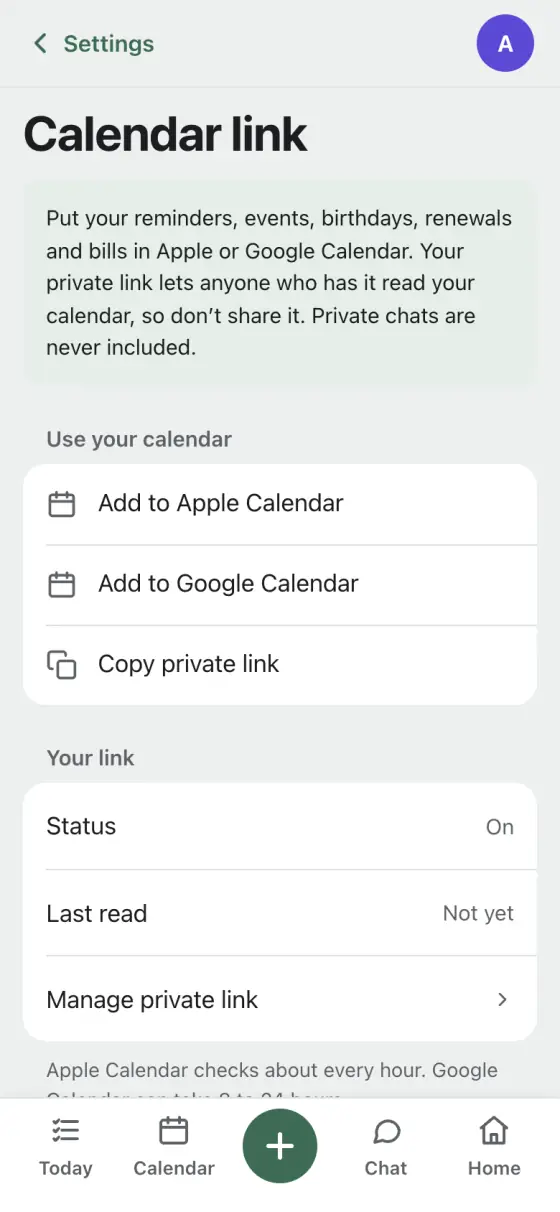
- Tap your picture at the top right to open Settings.
- Open Calendar link.
- Tap Create my calendar link.
- Tap Add to Apple Calendar, then confirm Subscribe on your iPhone.
Your Apple Calendar then shows a calendar called "The Fridge · your name", with your reminders, events you are invited to, everyone's birthdays, your renewals, and the bills and subscriptions you pay, from all your fridges. If you are on more than one fridge, each entry starts with the fridge's name. It covers the last 2 weeks and about the next 6 months.
Related
How do I see The Fridge in Google Calendar?
- Open Settings and tap Calendar link.
- If you don't have a link yet, tap Create my calendar link.
- Tap Add to Google Calendar, then Open Google Calendar.
- Google opens in your browser and asks whether to add the calendar. Tap Add.
It shows up in Google Calendar on all your devices as "The Fridge · your name", with the same things as in Apple Calendar: your reminders, events you're invited to, birthdays, renewals, and the bills you pay. It's one way: changes you make in Google don't come back to The Fridge.
Google only lets you add a calendar by link on its website. If it doesn't work on your phone, tap Copy link and add it on a computer: in Google Calendar, next to Other calendars, choose +, then From URL, and paste the link.
Related
Why is Google Calendar so slow to show my changes?
Google decides when to read your calendar link, and it's usually every 8 to 24 hours. Neither you nor The Fridge can make it go faster, and Google has no refresh button for it. A reminder you add or check off in The Fridge can take until tomorrow to change in Google.
Use Google Calendar to see what's coming up. For anything new or urgent, look at The Fridge itself: its own alerts always come on time. If you want changes to show sooner, Apple Calendar checks the link about every hour.
The Last read line under your link shows the last time Google (or your iPhone) read it.
If I mark something done in The Fridge, does it leave Apple Calendar?
Yes, the next time Apple Calendar refreshes. A reminder you have marked done drops off, a paid one-off bill disappears, and a repeating bill moves to its next due date. A renewal you marked Renewed moves to its new date, and an event you said Can't go to disappears. Apple Calendar does not update straight away, though.
Why hasn't Apple Calendar updated yet?
Your iPhone decides when to check for changes, so it can be a while, often an hour or more. Our link asks for about once an hour. To make it check more often, open the iPhone Settings app, go to Calendar, then the calendar accounts, then Fetch New Data, and choose a shorter time. The Last read line under your link (in The Fridge Settings › Calendar link) shows when your phone last checked.
Can I change or check things in Apple or Google Calendar?
No. The link only shows your things in Apple or Google Calendar; nothing goes back to The Fridge. To mark something done, move it or delete it, do it in The Fridge, and your calendar catches up on its next refresh.
Related
Is my calendar link private? How do I turn it off or make a new one?
The link is private to you, but anyone who has it can read your calendar, so don't share it. To stop it, go to Settings › Calendar link › Manage private link:
- Turn off calendar link stops the link at once, and Apple or Google Calendar stops updating.
- Make a new link stops the old link at once and gives you a new one. You then need to tap Add to Apple Calendar or Add to Google Calendar again.
To remove the old calendar from your iPhone too, open Apple Calendar, tap Calendars, tap the ⓘ next to "The Fridge" and choose Delete Calendar. In Google Calendar on a computer, point at "The Fridge" under Other calendars, open its menu (⋮) and choose Settings, then Unsubscribe (Google may call it Remove calendar). Private chats are never in the link.
Events
How do I make an event and invite people?
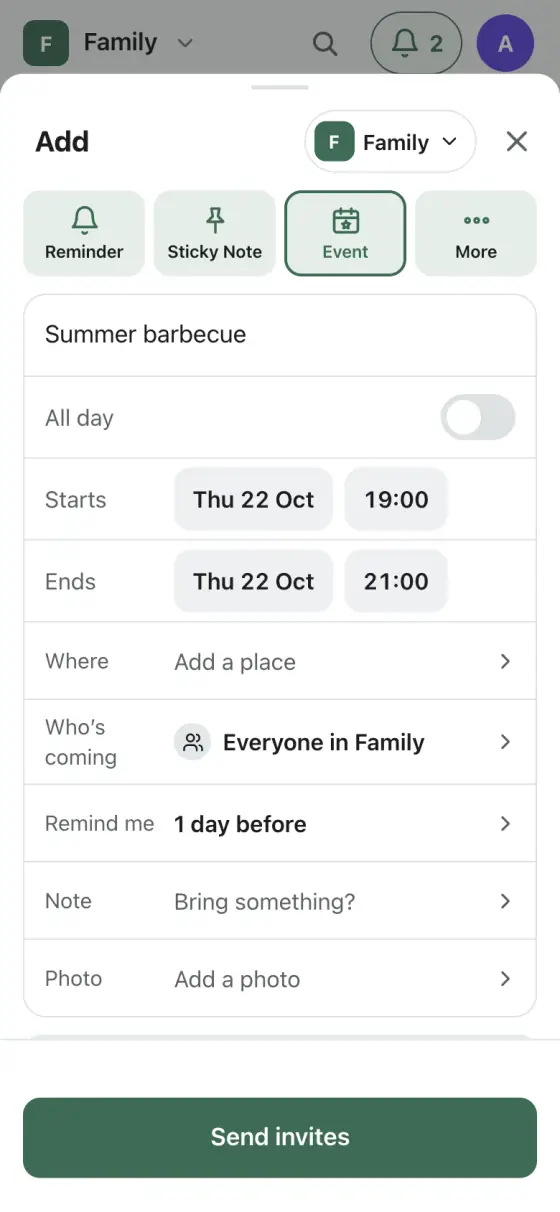
- Tap the round + button and pick Event.
- Type what the event is.
- Set Starts and Ends, or turn on All day. An event can last up to 31 days.
- Tap Who's coming and pick Invite everyone in (your fridge), Invite some people, or Just me (only you see it, no invites).
- If you want, add Where, Remind me, Note and Photo.
- Tap Send invites (or Save event for Just me).
Only you and the people you invite can see the event; nobody else on the fridge sees it, Admins neither. With Invite everyone in the whole fridge sees it, people who join later too. The people you invited get an alert and can answer Going or Can't go. Only you, or an Admin who can see it, can change or delete it later.
Related
How do I answer Going or Can't go?
You can answer in any of these places:
- On the invitation alert, using its Going and Can't go buttons.
- On the event's card on Today.
- By opening the event (from Today or the Calendar) and tapping Going or Can't go at the bottom. Tap Guests to see everyone's answer. Whoever made it can tap When, Where, Guests or Remind there to change them, or tap its name to fix it, then tap Update. ••• › All details (top left) shows the photo, likes and the full list.
You can change your answer at any time. The person who made the event is always going, so they don't answer. If they have Event replies turned on (Settings › Reminders and alerts), they get a short alert with your answer.
How do event reminders work?
The person who makes the event chooses Remind me, and can pick up to two: At the start, 1 hour before, On the day, 1 day before, 2 days before, 3 days before or 1 week before. All-day events have no start time, so they don't offer "At the start" or "1 hour before". The reminders go to everyone invited, except anyone who said Can't go. The "day" reminders come at each person's own morning time. If the event starts before that time, the "On the day" one comes an hour before it starts instead. The starting choice comes from Settings › Reminders and alerts › Default warnings.
Related
Can I add a place, an address or a photo?
Yes. In the event form:
- Tap Where to type a place name and an Address. Suggestions appear as you type, including places your family has used before.
- Anyone who opens the event can then tap Open in Maps.
- Tap Photo, then Add a photo, to choose a picture (the app makes it smaller for you). Tap Remove photo to take it off.
What time do guests in another time zone see?
An event uses the clock of the person who made it, and everyone sees the same times. If you are in a different time zone, the time is labeled with their city, for example "7:00 PM (New York time)", so you know it isn't your local time. "1 hour before" and "At the start" reminders come at the real moment the event starts. The "day" reminders come at your own morning time.
Birthdays and renewals
How do I add a birthday, and what is the birthday heads-up?
- Tap Apps, then Birthdays, then Add a birthday. Or tap + and type it, like "Lily's birthday March 12".
- Type whose birthday it is and pick the Date.
- If you like, add the Year born to show the age they turn ("turns 24"). On the same page you can choose Every year or Only this once.
- Under Remind, pick who gets the reminder. Under When, add early warnings: 1 week, 3 days or 1 day before.
- Save.
Everyone you pick gets a reminder on the day, at their morning time. The birthday heads-up is an extra short alert the morning before a birthday you are on, so there is time to get a gift or card. It is on for everyone at the start. Turn it off for yourself in Settings › Reminders and alerts › Birthday heads-up the day before. Everyone on the fridge can see all birthdays.
To change a birthday later, tap it (on Birthdays, Today or the Calendar) and its popup opens: tap the name to fix it, or tap Birthday, Warn me or For to change it right there; it saves by itself (✓ Saved shows for a moment). Tap Done when you're finished. More has All details, All settings… (Year born, Only this once) and Delete.
What happens with a February 29 birthday?
In years without a February 29, the birthday is kept on February 28, so the reminder comes that day. The Calendar and the alert both say "Feb 29 birthday, kept on Feb 28 this year". In leap years it is on February 29 as normal. To pick 29 February, move the date calendar forward to a February that has a 29th (like 2028) and tap 29.
What is a renewal, and how do its warnings work?
A renewal is something that runs out and needs renewing by a date, like insurance, a passport or a driver’s license.
- Tap Apps, then Renewals, then Add a renewal. Or tap + and type it, like "passport expires Feb 3, 2027".
- Pick who it is For and the Renew by date.
- Under Warn me, choose 1 month before, 2 weeks before and/or 1 week before, or add your own date and time.
The people it is for get each warning at their morning time. The person who added it also gets a last reminder on the renew-by day and one the day after, and then the reminders stop. Each warning day also shows on the Calendar.
To change a renewal later, tap it (on Renewals, Today or the Calendar) and its popup opens: tap Renew by, Warn me or For to change it right there; it saves by itself. Renewed is at the bottom, and More has All details (the photo and the last-reminder line), All settings… (your own warning dates) and Delete.
What does "Renewed" do?
When you have renewed something, tap Renewed on it. You'll find the button on the renewal itself, when you tap it on Today or the Calendar, or in the bell list. Then pick the New expiry date (it suggests a year later) and tap Save. The renewal moves to the new date, and the same warnings start again for it. Any "own date" warnings were for the old date, so they are cleared; use Edit to add new ones. The person it is for, the person who added it, or an Admin can press Renewed.
Bills and subscriptions
How do I add a bill? One-off or repeating?
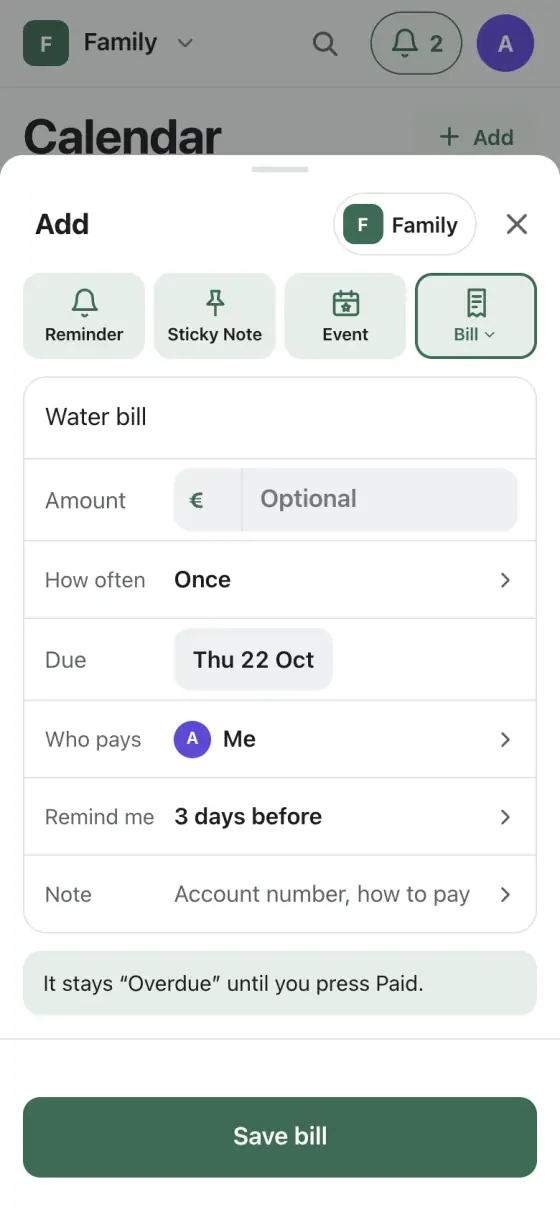
- Tap Apps, then Bills. Make sure Bills is picked at the top (next to Receipts and Warranties), then tap Add. Or tap + and type it, like "electric bill $84.20 due the 20th".
- Type which bill it is (for example "Electricity").
- Add the Amount if you want. It's optional.
- Under How often, keep Once for a one-off bill, or pick Every month, Every 2 months, Every 3 months, Every 6 months or Every year.
- Pick the Due date and Who pays (one person, or Everyone).
- Under Remind me, pick 1 day, 3 days or 1 week before, or your own date. You can also add a Note, such as the account number.
- Tap Save bill.
A repeating bill moves to its next due date by itself each time you press Paid (the round check on its row).
Something already paid, like a restaurant bill, is a Receipt: pick Receipts at the top, then Add. It has no due date and no reminders. A one-off bill that was really a receipt: open it and tap It’s a receipt (already paid).
Can I add a bill or a receipt from a photo?
Yes, in the iPhone and Android apps. On a computer or in a browser this isn't there (yet).
- Tap Apps, then Bills, then Scan next to Add.
- Hold the iPhone over the bill or receipt. It finds the edges of the paper by itself. Tap Save. On Android the phone's camera opens: hold the phone straight over the paper, take the photo and tap ✓.
- A card shows what it read: who the bill is from, the Amount, the Due date and how often it repeats. Yellow boxes on the photo show where each one was read. Tap anything to change it.
- Tap Save bill.
Who is it from? shows your earlier bills as buttons. When the name can be read, it is already picked. Picking an earlier bill also fills in how often it repeats and who pays, from last time. Or tap Type a name.
At the top of the card pick Bill, Receipt or Warranty. A shop receipt opens as a Receipt: where it was, the amount, the date and who paid. It goes under Bills › Receipts, already paid. For something you may need to repair, pick Warranty: type what you bought and pick how long the warranty lasts (2 years is the EU minimum). It goes under Bills › Warranties, with a reminder a month before it ends.
The photo is read on The Fridge's own server, which reads Greek and English. It doesn't keep the photo or send it to any other company. If the server can't be reached, your iPhone reads it instead (on Android, try again a little later). Only if Keep the photo with it is checked is the photo saved with it. It is checked for a receipt or warranty, and not for a bill. A kept photo shows as a small picture on the row: tap it to open it full screen, then Save or share it (on a computer: Save or Share) or Remove it. Everyone on that fridge can see a kept photo.
When your iPhone reads it (no connection), it can't read Greek letters: the amount and date are read, but you pick or type the name.
Who can press Paid, and how do I undo it?
Paid can be pressed by the person who pays the bill (anyone, if it's for Everyone), the person who added it, or an Admin. You'll find the button on the bill in Bills, in its details, and when you tap it on the Calendar.
Tap a bill or subscription (on Bills, Subscriptions or Today) and its popup opens: tap Amount, Due, Repeats, Who pays or Warn me to change it right there, or tap its name, then tap Update (Paid saves your changes first). ••• at the top left has All details (the photo and the full list), Mark canceled for a subscription, It's a receipt for a one-off bill, All settings… and Delete.
To undo a one-off bill, open it and tap Not paid after all. You can also go to Apps › History, open the bill and tap Mark as not paid. Only the person who added the bill, or an Admin, can undo it.
A repeating bill has no undo. It has already moved to its next due date. Ask the person who added it (or an Admin) to tap Edit and set the Due date back.
Related
What does Overdue mean?
A bill is Overdue when its due date has passed and nobody has pressed Paid yet. Overdue bills go to the top of Bills under "Overdue", shown in red with how many days late they are, and they also show on Today. A bill stays Overdue until someone presses Paid. It does not go away on its own.
How do subscriptions work (next charge, totals, canceling)?
- Tap Apps, then Subscriptions, then Add a subscription.
- Type the name (for example "Netflix") and the Price. The price is required.
- Pick How often (every week, month, 3 months, 6 months or year).
- Pick the Renews date, which is the next charge. It starts on the 1st of next month.
- Pick Who pays and any Remind me warnings, then save.
You don't press Paid for a subscription: it moves on to the next charge date by itself. The top of Subscriptions shows the total: "About $X a month · $Y a year".
When you stop a subscription, open it and tap Mark canceled. It moves to the Canceled list, drops out of the totals, and its reminders stop. Tap Resume to bring it back. Only the person who added it, or an Admin, can edit, cancel or delete it.
Can I use a different currency?
Yes. Each fridge has its own currency, which is US dollars ($) unless changed. An Admin can change it in Settings › Fridge and people › Currency. New bills and subscriptions use that currency, and ones you already have keep theirs. To use another currency for one bill or subscription, tap the currency symbol next to the Amount or Price and pick another one. Tap More currencies for the full list. The app never converts between currencies, so subscription totals show one line per currency.
Apps
What is on Apps, and how do I reorder or hide things?
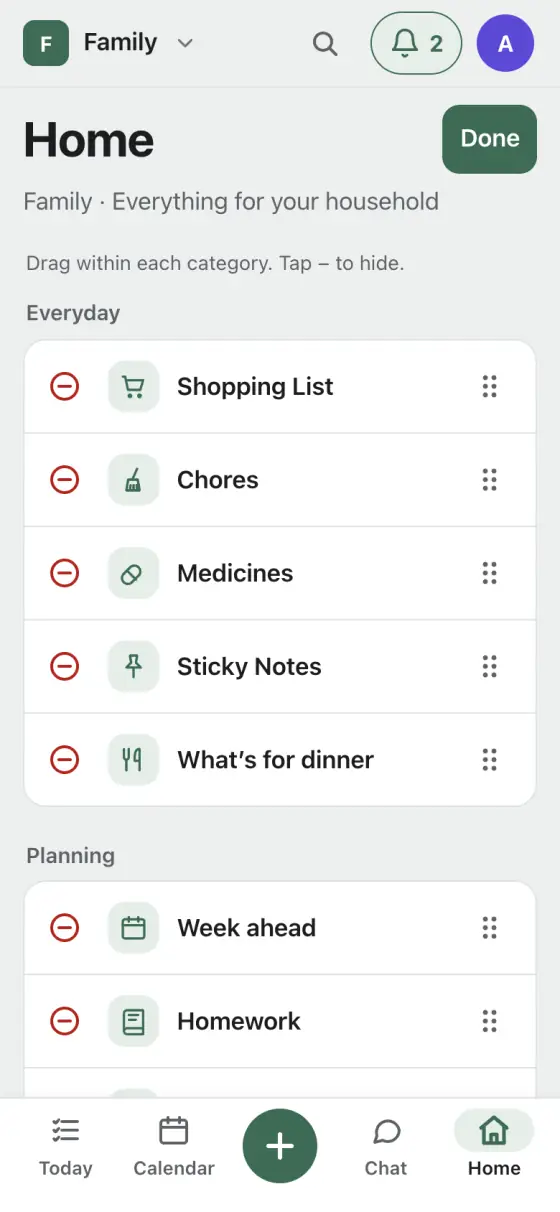
Apps (the four squares in the bar at the bottom) is where the family's shared things live, in four groups: Everyday, Planning, Bills and paperwork, and People and privacy. Each row has a short line about what is inside. Under them are Settings, then History and Recently deleted. Each person arranges Apps their own way, and nobody else's changes. (Until October 2026 this page was called Home.)
To change it:
- On Apps, tap Edit (next to the Apps title).
- To move a row, hold the six dots on its right and drag it to a new place in its group. With a keyboard, use the arrow keys on the dots.
- To hide a row, tap the red − on its left. It moves to Hidden modules at the bottom.
- To bring it back, tap + next to it in Hidden modules. It goes back to its own group, where it was.
- Tap Done.
Hiding only tidies your own Apps page: nothing is deleted, its reminders still come, and other people still see it on theirs. Your Quick access shortcuts on Today have their own order (Today › Quick access › Edit).
On a computer, Apps is in the bar at the top, next to Today, Calendar and Chat, and your apps are also in the list on the left. Edit there works the same way (the same order and hidden apps as on your phone).
How do shopping lists work (several lists, checking, clearing)?
Open Apps › Shopping List. Everyone on the fridge shares the same lists.
- Tap New list to make another one, like "Pharmacy" or "Party". You can have up to 20.
- Open a list and type in Add an item at the bottom of the screen (it stays there however long the list is), then tap Add. The keyboard stays open, so you can add several in a row. In the apps (and on a computer) you can also tap the round 🎤 next to the box and say several things at once, like "milk, eggs, bread and butter": each becomes its own item, and Undo takes them all back off. Things like "macaroni and cheese" or "fish and chips" stay one item, and once anyone in your fridge has added something with "and" in it (say "Chicken and rice"), the mic keeps that together too. In the aisle has the same as Say it. Items sort themselves by supermarket aisle (Produce, Bakery, Dairy & eggs and so on). If something is already on the list, it isn't added twice.
- Tap an item to check it. It moves down to Got it, with the name of the person who checked it, and Undo shows for a few seconds above the box. Tap it again to uncheck it.
- Clear checked items removes everything that's checked from that list. Anyone can do this.
In the shop: on your phone, open a list and tap In the aisle. The list fills the screen with big rows, aisle by aisle, and your screen stays on while you shop (tap Screen on at the top to let it sleep; it also lets go after an hour). Tap an item to check it (with Undo); it moves to Got it. Anything someone adds from home pops up with New and their name. Tap + to add something, and Done shopping when you're at the till: it asks whether to clear the checked items.
Anyone can check items. Only the person who added an item, or an Admin, can remove it: tap Manage, then Remove next to the item, and you get a few seconds to undo. Manage also shows Rename list and Delete list, for the person who made the list, or an Admin. A deleted list stays in Recently deleted for 30 days. You always keep at least one list.
What are Sticky Notes?
In the app they're called Sticky Notes: short notes on the family's fridge door, like "Plumber coming Thursday, leave the side gate open". Open them from Apps › Sticky Notes, then tap Add a sticky note (or tap + › Sticky Note).
- Write up to 280 characters and pick a paper color.
- Under Who is it for? pick Everyone or certain people. Keep until can be Today, This week or Until I remove it. Pin keeps a note at the top until someone removes it.
- Tap Stick it on. Everyone on the fridge can read it.
- If the note mentions a date, you get an Add to calendar button, and a reminder button when the note is for one person.
At the top you can filter All, For me or Mine. Tap a note to see who has seen it. If someone else's note asks for something, tap I'll do it and the writer gets a quiet alert. Only the writer or an Admin can edit, pin or delete a note. When a note runs out, it goes to Recently deleted.
How does the Phonebook work (call, email, map, who can edit)?
The Phonebook is one shared list of useful numbers, like the doctor, the school or the plumber.
- Open Apps › Phonebook and tap Add a contact.
- Under Who is it?, tap a suggestion, for example Dentist, Babysitter, Plumber or Trash pickup. The role and the category are filled in for you. Not in the list? Tap Just type a name.
- Type the name and, if you like, a phone number, then tap Save contact.
A suggestion with a green ✓ is already in your Phonebook. You can still tap it, for example for a second school. An empty Phonebook shows the most common ones right on the page.
In the iPhone and Android apps, Choose from my contacts fills in the name, phone, email and address from your phone's own contacts (only the one person you pick; nothing else from your phone is shared). The role, email, address, a note, the category and Whose contact can be changed under More details.
- The categories are Health, Kids, Home (also power, water, internet and trash), Car, Pet and Other. Tap one at the top of the Phonebook to see only those.
- A phone number gives you a Call button, an email address an Email button, and an address a Map button.
- Use Search or Showing to find someone fast.
- Everyone in the fridge can see every contact. "Whose contact" only says whose it is.
- Only the person who added a contact, or an Admin, can change or delete it. Deleted contacts stay in Recently deleted for 30 days.
How does Location work? Is my location tracked?
Apps › Location shows each person as at one of their places (for example "Home" or "Work"), Out, or Location off. It's off until you turn it on, and it only works in The Fridge iPhone and Android apps.
- Open Settings › Location and tap Turn on Location. On an iPhone, choose Allow While Using App and then Change to Always Allow. On Android, choose While using the app, then in the settings page that opens choose Allow all the time and go back.
- Tap Add a place, stand at the place and tap Save here. You can save up to 5 places.
After that it updates by itself whenever you arrive at or leave one of your places (within about 500 feet). Where your places actually are stays on your own phone. The family only ever sees the place's name, or "Out", unless you choose to share where you are (see How do I let someone see where I am on a map?). To hide your status from everyone, go to Settings › Privacy and your data and turn on Hide my status.
How do I let someone see where I am on a map?
It's off until you switch it on, and only the people you pick can see you.
- In The Fridge iPhone or Android app, open Settings › Location.
- Switch on Share where I am. If your phone asks, choose Always Allow (Android: Allow all the time), so it also works when the app is closed. On Android a small notification shows while you share.
- Under Who can see me, switch on each person who may see you.
They can then tap Map next to your name in Apps › Location and see you on a map, whenever they like. While the app is open it moves with you; when it is closed it updates every few minutes or when you move a few hundred yards, and the map says when it was last updated. No history is kept: only where you are now. Switch someone off, or switch off Share where I am, and they stop seeing you at once. Every 4 weeks Today asks "Still OK?", so you never forget it's on.
Can parents see where their children are?
Yes. An Admin marks someone as a child: Settings › Fridge and people › tap the child › switch on This is a child, and check the parents. (You can also do it when you add them: Add person › This is a child.)
- A parent switches on Parents can see where [name] is in Settings › Location › My children.
- On the child's phone, The Fridge app needs Location set to Always once. Do it together on their phone.
The child sees Your parents can see where you are and can't switch it off. If the child switches off Location for The Fridge in the phone's own Settings, the parents get a notification straight away. A parent can take the child mark off any time: Settings › Location › My children › [name] is not a child any more.
Chat
What is the difference between the family chat and private messages?
On a phone, tap Chat at the bottom. On a computer, click Chat in the bar at the top (or a chat bubble on Today): it opens on the right and stays there as you move between pages, until you click Close or Chat again. Your conversation and unsent message stay while you move around. The first row is your fridge's group chat, which everyone on that fridge can read. Below it there is one row for each person you share a fridge with, marked Private. That's a one-to-one chat only the two of you can see. Each fridge has its own group chat. A private chat stays the same whichever fridge you're looking at.
Who can read my private messages?
Only the two of you. Nobody else in your family or fridge can see them, not even an Admin. The other person's phone may show the message in its alert, so it could appear on their lock screen.
How do I delete a message?
- In the chat, tap your own message.
- Tap Delete message.
- Tap Delete to confirm. It disappears for everyone, or for both of you in a private chat.
You have a few seconds to tap Undo. After that it's gone for good and does not go to Recently deleted. You can delete your own messages. In the group chat, an Admin can also delete anyone's message. In a private chat, only the person who wrote a message can delete it.
How do I mute a chat?
- Tap Chat and open the chat you want to mute.
- Tap Mute at the top right. Tap Unmute to turn alerts back on.
When a chat is muted, you get no alerts from it, but you can still read and write there as normal. You can also mute the group chat in Settings › Reminders and alerts › Mute this fridge’s chat. That switch only applies to the fridge you're looking at.
Why don't I get an alert for every single message?
On purpose, so a busy chat doesn't buzz your phone twenty times. The Fridge waits until the chat has been quiet for a few seconds (never more than about 2 minutes), then sends one alert for all the new messages. You never get two chat alerts less than about a minute apart. You also won't get an alert:
- if you muted that chat,
- during your quiet hours (they come after quiet hours end),
- if you already read the messages, or they are more than 12 hours old,
- if notifications aren't turned on for The Fridge on that phone.
Related
Can I ask a question about one reminder or event?
Yes. Tap the reminder or event (on Today or the Calendar), then tap the big button:
- on a reminder, tap Ask Emma about this (it names the people on it). Only the person who made the reminder and the people it is for can read these messages, not even an Admin.
- on an event, tap Chat about this: what to wear, what to bring, where to meet. The people who can see the event can read and write: only you and your guests, or everyone on the fridge when the event is for everyone. Alerts go to the person who made the event, the guests who are going and anyone who has written in it.
On Today the speech bubble on the right of the row is the chat. An outline bubble: nobody has written yet. A filled bubble: there are messages and you have read them. A bubble in your color with a number: that many are new. Tap it to go straight to the messages. The top of the chat shows everyone who is in it.
Something only you are on (a reminder you made for yourself, an event with no guests) has nobody to chat with, so its button is a note instead. An outline note: no note yet, tap it to add one ("Locker 42", "bring the blue card"). A filled note: there is one, tap it to read or change it. It is the same Note you can type when you make it or in Edit; if you add someone to it later, they see the note too. The card at the top of the messages opens the reminder or event again. Tap your own message to delete it.
You also find all of them on the Chat page, under Reminder and event chats, newest first. The Chat button counts their new messages too (for an event, only once you get its alerts).
The messages are deleted 24 hours after the reminder is done or the event is over, or straight away when the reminder or event is deleted.
Related
Fridges
What is a fridge?
A fridge is one group in The Fridge, for example "Family", or "Lake house" for the people who share a vacation home. Each fridge has its own people, reminders, lists, calendar, notes, contacts and group chat. People on one fridge can't see your other fridges. Most families only need one, but you can belong to several and switch between them.
How do I make a fridge, switch fridges, or invite people to one?
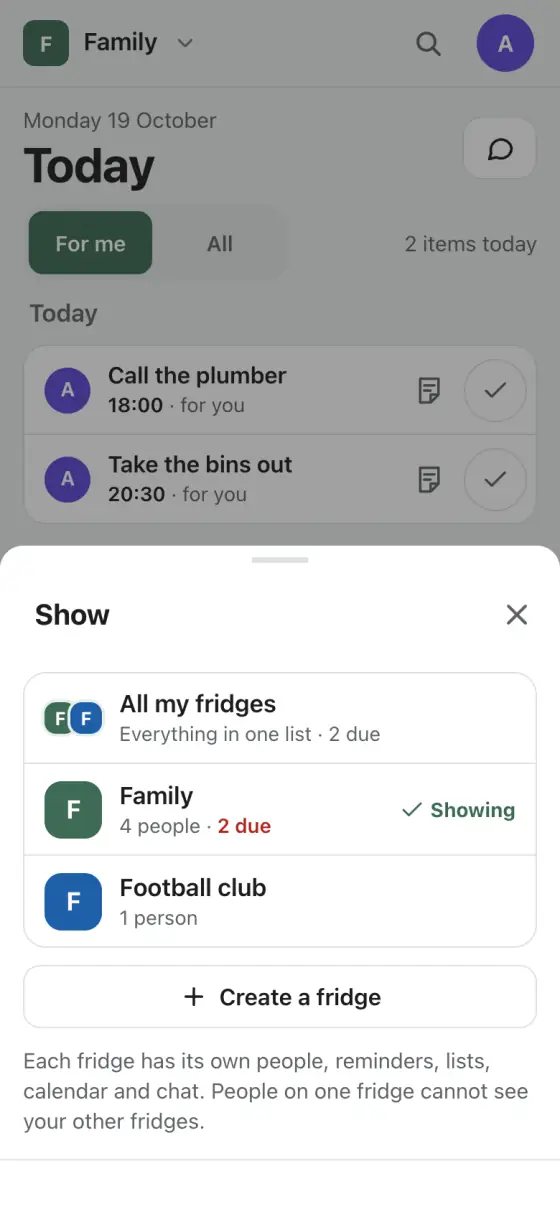
Switch: tap the fridge name at the top left of Today, Calendar, Chat or Apps (for example "Family"), then tap the fridge you want. On Today and the Calendar you can also pick All my fridges to see everything in one list.
Make one: tap the fridge name › Create a fridge (also in Settings › Fridge and people). Give it a name of up to 14 letters, then pick anyone you want to invite now, which is optional. You become its Admin. Anyone can make a fridge.
Invite people: an Admin of the fridge opens Settings › Fridge and people.
- For someone you already share another fridge with, tap Invite from another fridge under People. They see a card on Today with Join or No thanks. Invites last 14 days.
- For someone new, use Add person under People.
How do I leave or delete a fridge?
Leave: switch to that fridge, go to Settings › Fridge and people and tap Leave this fridge. You stop seeing it and getting its alerts, and your reminders there are removed. You can only leave if you're on at least one other fridge. If you're the only Admin, make someone else an Admin first. Right after joining, you can also tap Undo to leave straight away.
Delete (Admins only): go to Settings › Fridge and people › Delete this fridge, type the fridge's name and tap Delete for everyone. This removes everything on that fridge for everyone, including reminders, lists, notes, contacts and its chat. It can't be undone. Private messages are not touched. Your first Family fridge can't be deleted.
What can an Admin do that a Member can't?
On their fridge, an Admin can:
- add and remove people, send and re-send invites, and cancel any invite,
- make others Admins or Members,
- change someone's color, quiet hours or time zone, and sign all of someone's devices out (for a lost phone),
- rename the fridge, set its currency, change Week ahead, and delete the fridge,
- change or delete things other people added (shopping items and lists, sticky notes, contacts, events, bills and so on), and delete anyone's message in the group chat.
Admins cannot read your private messages or your Private vault, and they don't see reminders that aren't for them. There must always be at least one Admin.
People
How do I add a person or invite someone by email?
Only an Admin can add people.
- Tap your picture (top right) › Settings › Fridge and people.
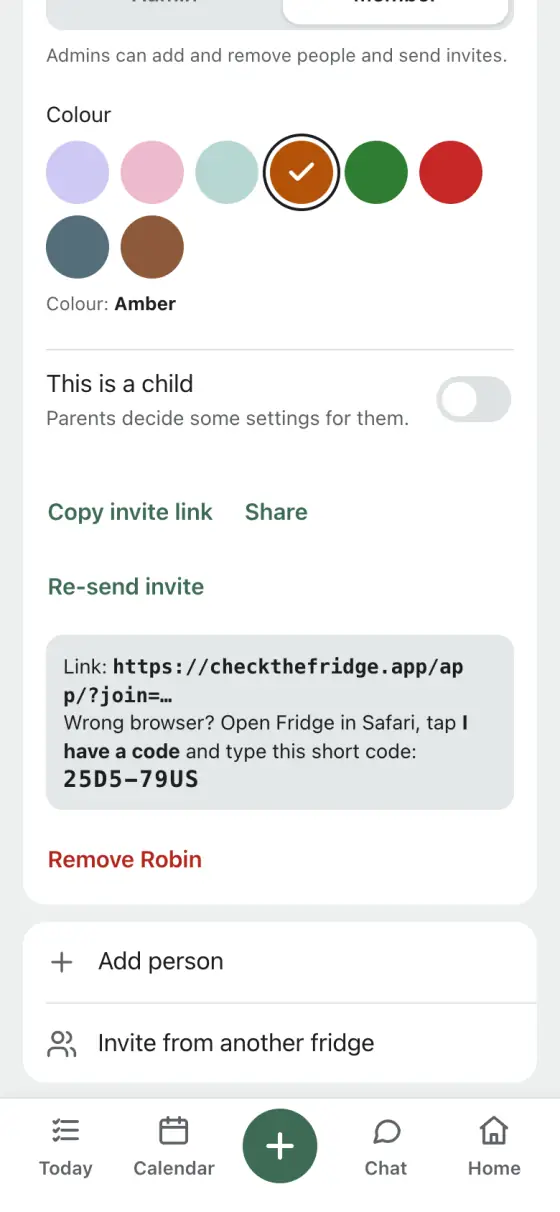
- Under People, tap Add person. Type their name, pick a color and choose Admin or Member, then tap Add person.
- Under their name, open Manage <name> and tap Share to send the invite link in Messages, WhatsApp or Mail, or tap Copy invite link.
- They open the link on their phone. It shows how to get the app (invite only until we launch) and then opens their invite in it. In the app they can also tap I have a code and type the short code shown under the link.
The link and code work for 7 days. If they lose it, tap Re-send invite to make a new one; the old one then stops working. To email an invite, tap Share and choose Mail.
How do I remove a person?
Only an Admin can remove someone.
- Tap your picture (top right) › Settings › Fridge and people.
- Under People, open Manage <name>.
- Tap Remove <name>, then tap Remove <name> again to confirm.
Reminders for them on this fridge are deleted. If they're also on another fridge, they only leave this one; otherwise they're signed out and removed completely. You can't remove yourself (use Leave this fridge instead), and you can't remove the last Admin. To cancel an invite before someone joins, tap Cancel next to their name under Invited.
How do I change my color or photo?
- Tap your picture (top right) to open Settings.
- Tap your name at the top (Your account).
- Under Your color and photo, tap a color. Colors someone else already has are grayed out.
- Tap Add a photo (or Change photo) to pick a picture. Remove photo takes it off.
Your color marks your things in Today, the calendar and the chat. Your photo shows instead of your initials, and everyone on your fridges can see it. An Admin can also change someone else's color under Manage <name>.
Private vault
What is the Private vault, and who can see it?
The Private vault is a locked place just for you, for things like the Wi-Fi password, the alarm code, where the spare key is, or a photo of a passport or the car papers. Only you can open it, with Face ID on an iPhone or your fingerprint on an Android phone. Nobody else can read it: not your family, not the Admins, and not the person who runs The Fridge. Everything is locked on your phone before it leaves it.
- On Apps, tap Private vault.
- Tap Set up my vault and follow the three steps: make a passkey with Face ID (Android: your fingerprint), print or write down your recovery code, then check you copied it right.
The vault locks itself after a minute away from the app or a few quiet minutes. You can also tap Lock now. It is not meant for card or bank numbers, and it is not a password manager for websites.
Related
What if I lose my phone? (recovery code)
Two things to do:
- Get back in and sign the lost phone out. On the new phone, tap Sign in with email (it sends a code to the email you checked), or Sign in with Face ID if you turned it on. Then go to Settings › Your account › Phones and computers signed in and tap Sign out next to the lost phone. Can’t get into your email? Ask an Admin: in Settings › Fridge and people they open your name and tap Sign out all of your devices, then Re-send invite so you can join on your new phone.
- Open your vault on the new phone. Still have a phone that opens your vault? Go to Apps › Private vault on the new phone, tap Face ID or your fingerprint, and when it says This phone has no key yet, tap Use my other phone. It shows a QR code and 4 numbers. On the other phone, open the vault and go to Passkeys and recovery › Add a phone, scan the code, check the numbers match and tap Add with Face ID (or fingerprint). No other phone? Tap Use my recovery code instead and type the code from your printout (capitals and dashes do not matter). Either way, the new phone then makes its own passkey (Face ID or fingerprint).
If your new iPhone uses the same Apple ID (iCloud Keychain), Unlock with Face ID may just work; a new Android phone with the same Google account (Google Password Manager) may just Unlock with your fingerprint. Apple and Google do not share passkeys, so the first time you open the vault on the other kind of phone (an Android after an iPhone, or the other way round), use Use my other phone or your recovery code once. Settings › your name › Your keys shows which phone or computer has which key, and lets you remove a lost phone’s keys. It is the same vault, with the same items and documents, on every phone and computer where you are signed in to The Fridge. If you have lost both the passkey and the recovery code, nobody can open the vault, not even an Admin. All you can do then is delete it (Can’t unlock? › Delete my vault and start again) and start a new one.
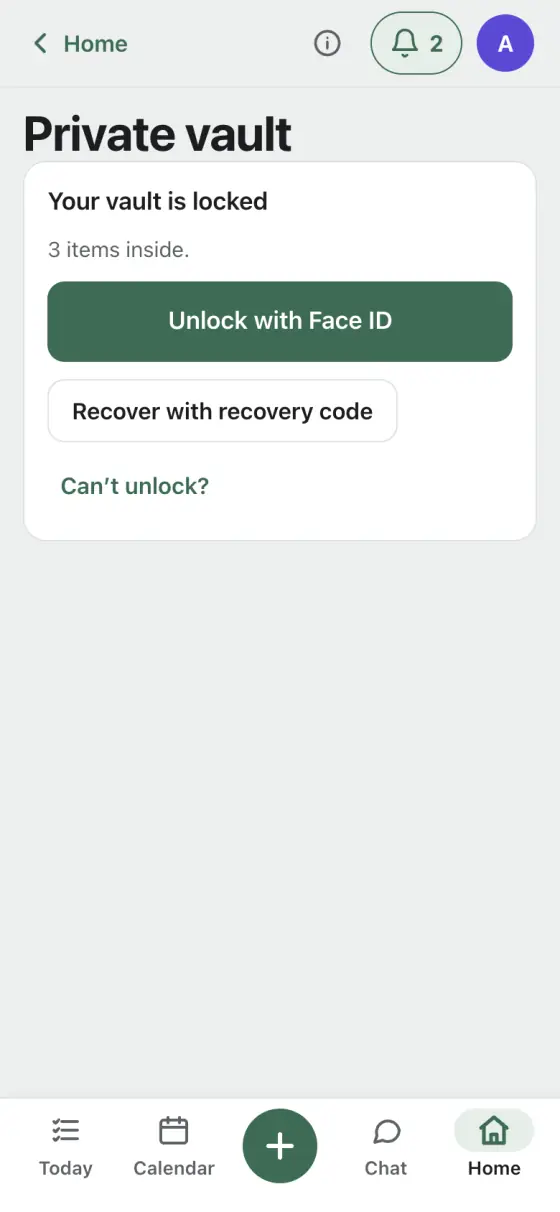
What documents can I keep, and how do expiry reminders work?
Tap Add item in the vault, then pick Note or code (a title, the secret, and a note) or Document (a photo or a PDF, like a passport, insurance or car papers). For a document you can Take a photo, pick from your Photo library, or choose from Files (PDF or photo). Each file can be up to 5 MB, with 50 MB in total. You sort things by kind: Home, Car, Health, IDs & passports, Money or Other.
Expiry: add a date under Expires (optional). From 60 days before, the document shows "Expires in N days", turns red when it expires, and a note at the top of the vault lists documents that need attention. To also get an alert, check Also remind me before it expires, type the reminder title and pick 1 week before, 1 month before or 3 months before. This makes a normal reminder just for you, at 9:00 that morning. Only your title and the date go into the reminder, never the document.
Can I share something in my vault with someone?
Yes, one item at a time, with anyone in one of your fridges who has set up their own vault. It stays locked: only the two of you can open it, never the server or an Admin.
- In your Private vault, tap the note or document.
- Tap Who can open it, check the person and tap Share with ….
They get an alert and see it in their own vault, marked From and your name. There is one copy: either of you can change it, and you both see the change. Only you can share it with more people, stop sharing it or delete it. They can tap Remove from my vault to take it out of theirs. If someone shows Hasn’t set up a vault yet, tap Remind. Stopping sharing takes it out of their vault at once, but they may already have saved a copy.
Related
How do I lock the app with Face ID?
This works in the iPhone app and the Android app.
- Open Settings › Privacy and your data.
- Under Lock, turn on Lock with Face ID.
- Choose when it asks again after you leave the app: Right away, After 1 minute or After 10 minutes.
The app also asks once at the end of setup ("Lock The Fridge with Face ID?" › Turn on or Not now). Your iPhone needs a passcode set first (iPhone Settings › Face ID & Passcode). While the lock is on, the Due today widget shows "Locked". Notifications can still show their words on your Lock Screen; to hide them, go to iPhone Settings › Notifications › The Fridge › Show Previews. This lock is separate from the Private vault, which always needs its own Face ID (Android: fingerprint) or the recovery code.
In the Android app it is called Lock with fingerprint: it uses your fingerprint, face unlock or the phone's PIN, and the phone needs a screen lock first (phone Settings › Security). When The Fridge is locked, tap Unlock.
Notifications
I'm not getting notifications. What should I check?
- Open Settings › Reminders and alerts. Under Notifications, "Notifications on this phone" should say On.
- If it says Off, tap Allow notifications. If it says Blocked, go to iPhone Settings › Notifications, find The Fridge, turn on Allow Notifications, then come back. If it says Not yet, you are in a phone browser, not in the app: open the Get the app page, install The Fridge app, open it and tap Allow notifications there.
- Tap Send test notification. If the test arrives, your phone is set up.
- Check Quiet hours on the same page: reminders due at night wait until quiet hours end.
- Check your iPhone is not in a Focus or Do Not Disturb mode.
- For chat, check Mute this fridge’s chat is off.
Remember, a reminder only goes to the people it is for. Each phone and iPad has to allow notifications on its own. Show setup guide walks you through it again.
What are quiet hours?
Quiet hours stop reminders from waking you at night. While Hold reminders at night is on, anything due between your From and To times (at first 10:00 PM to 7:00 AM, on your phone’s clock) waits and arrives when quiet hours end. Repeats and snoozes also wait. So do chat alerts, event and bill alerts, Week ahead and the Monday summary. Change them in Settings › Reminders and alerts › Quiet hours. An Admin can also set quiet hours for someone else in the family (handy for children).
Wind down sits just under them. Switch it on and you get one alert a little before quiet hours start (15 minutes to 1 hour before, on the nights you pick) with a look at tomorrow, like “Tomorrow: 8:30 AM Dentist · Trash out”. Tap it to see tomorrow in the app. It only works while Hold reminders at night is on.
What does the number on the app icon mean?
The number on The Fridge icon on your Home Screen adds up reminders that are due or overdue for you (on all your fridges) and chat messages you have not read yet (family chat and private chats). It goes down when you mark reminders done and read your messages. It stops at 99. If you see no number at all, check that Badges is on in iPhone Settings › Notifications › The Fridge.
What do the buttons on a notification do?
Press and hold a notification (or swipe it left and tap View) to see its buttons:
- Done: marks the reminder done without opening the app.
- Snooze 10 min, Snooze 1 hour or Snooze till tomorrow: it comes back later. Choose how long in Settings › Reminders and alerts › Snooze.
- Medicine: Taken or In 15 min.
- Event invite: Going or Can’t go.
- Call reminder with a number (iPhone app): Call, Snooze and Done.
Tapping the notification itself opens The Fridge at that item.
Settings
How do I change text size or colors?
- Tap your picture or initial at the top right to open Settings.
- Tap Look and feel.
- Fridge colors: tap a fridge and pick its color (Ocean, Sage, Plum, Clay, Teal, Rose, Graphite or Gold) and a picture. Text size: pick Normal, Large or Extra large. Appearance: pick Light, Dark or Auto.
Each fridge in its own color: the whole app takes the color of the fridge you are in, so you always see which one you are in. You can change any of your fridges here, also one you are not in right now (or in Settings › Fridge and people › Look for the one you are in). Your first fridge’s color is also the color of the app’s icon and of All my fridges.
These only change the app for you; everyone else keeps their own. Your own person color (the one your family sees on your dot) is under your name at the top of Settings, in Your color and photo. On a computer, use the browser’s zoom (Ctrl or ⌘ with + or −) for text size.
What are default warnings?
Default warnings are the early heads-ups a new birthday, renewal, bill, subscription or event starts with, so you do not have to pick them every time. Set them in Settings › Reminders and alerts › Default warnings. To start with: Birthdays none, Renewals 2 weeks before, Bills and Subscriptions 3 days before, Events 1 day before. You can still change the warnings on each one when you add it. Changing a default does not change things you already added.
How do I see my other devices or sign one out?
- Open Settings and tap your name at the top (Your account).
- Under Signing in, tap Phones and computers signed in. You see every phone, tablet and computer you are signed in on, with when it was last used. This one is marked "This device".
- Tap Sign out next to one and confirm. Or tap Sign out all other devices to keep only this one.
A signed-out device stops getting alerts and shows the welcome screen. Sign in on a computer (also under Signing in) signs in a computer or tablet: open checkthefridge.app/app there and it shows a QR code; in the app on your phone tap Scan QR code, point the phone at it and tap Sign in. Each QR code works once and changes every 2 minutes, and nothing signs in until you tap Sign in. No camera? Tap Show a code to type instead: a short code to type there (it works once, for 10 minutes). Sign out on this phone signs out only the phone in your hand.
How do I get back something I deleted?
Straight after deleting, tap Undo on the card at the bottom of the screen. Later on:
- On Apps (or in Settings › Privacy and your data), tap Recently deleted.
- Find it and tap Put it back.
Deleted reminders, events, bills, subscriptions, renewals, birthdays, contacts, sticky notes and shopping lists wait there for 30 days, then they are gone for good. The person who made it, the person who deleted it, or an Admin can put it back. Things in your Private vault and chat messages are not kept there: once the few seconds of Undo pass, they are gone.
Can I take back a reminder I sent to someone?
Yes, as long as they have not marked it done yet. Only the person who sent it can take it back (chores have their own rules: change them in Apps › Chores).
- Tap the reminder to open it.
- Tap Take back (in red; on a phone it can be under ••• at the top). The gray line under it says who will lose it.
- Sent to several people? Pick Everyone or Only one of them.
- Tap Take back to confirm, or Keep it.
It disappears from their Today. If their alert had not gone off yet, they are not told. If it had, they see one quiet gray line on Today ("Dan took back …") with OK: no alert and no sound, and it goes away after OK or a day. To fix only the time or the words, use Edit instead. Changed your mind? The reminder waits in your Recently deleted for 30 days: Put it back gives it back to the people you took it from.
What is History?
History shows the last 30 days of reminders and bills: what was Done (and by whom), what was Missed, and what is Still open. Open it from Apps (on a computer: the end of the list on the left) or Settings › Privacy and your data. You can search by title, note or person, and filter by Person. If you marked something done by mistake, open it and tap Not done after all (for a bill: Mark as not paid). You only see reminders you made or that were for you; chores are visible to everyone on the fridge.
How do I send feedback or report a problem?
- Open Settings › Help and feedback.
- Tap Send feedback.
- Choose Something broke, An idea or Other, type what happened, and add a screenshot if you can.
- Tap Send.
Your phone type, the app version and the screen you came from are sent with it, so you do not need to explain those. Only the person who runs The Fridge sees it. Your messages are listed under Your feedback with how far they got (Sent, Seen or Done). You can also tap Send feedback at the bottom of Questions and answers (the first row in Settings › Help and feedback).
How do I make sure I can get back in if I lose my phone?
Everyone on The Fridge has a checked email: right after you join or set up a new family (or the next time you open The Fridge, if you joined before), Your email asks for it and sends a 6-digit code to check it reaches you. There is no Later, so you can always get back in if you lose or change your phone. If your invite came by email after you asked to join on our website, that email is already checked: The Fridge saves it when you join and says so, and you skip this step. Someone marked as a Child (an Admin picked their Parents) does not need their own email: they can tap Skip: an Admin lets me back in, and an Admin helps them sign in on a new phone (below). Nothing came? Look in your spam folder, tap Send a new code, or tap Use a different email. On any new phone, Sign in with email sends a code to that address. Only you see your email.
To see or change it: go to Settings, tap your name at the top (Your account) and, under Signing in, tap If I lose my phone, then Email code › Change email. Your old email keeps working until the new one is checked.
A quicker extra way, if you like: Sign in with Face ID (Android: fingerprint). On the same page tap Face ID, then Turn on Face ID. It is saved in your iCloud Keychain (Android: Google Password Manager), so it still works after you delete the app and on a new phone with the same account. Get set up shows it as an optional step.
If you are an Admin, the page also shows whether your family has a second Admin. Make one: if you are the only Admin and lose your phone, nobody else can let you back in. Everyone else sees which Admins can help them.
An Admin helps someone else from the same page: Settings › Your account › Help someone sign in, pick the person, then Send a new link (by email or message) or Show a code to type (read it out; they type it under I have a code). Each new link or code stops the old ones. For a lost phone, Sign <name> out everywhere is there too; their vault, history and chats stay.
When someone signs in with an email code, their other devices and the Admins of their family get a note, so a stolen email is noticed. Your private vault stays separate: it still needs its own Face ID, fingerprint or recovery code.
Privacy and your data
Who can see what? Can an Admin see everything?
- Everyone on a fridge sees that fridge’s shared things (events for everyone, bills, birthdays, lists, sticky notes, the family chat) and your name, color and photo. People on one fridge cannot see your other fridges.
- Reminders are seen only by the person who made them and the people they are for. Chores are the exception: everyone on the fridge sees them.
- Events are seen only by the person who made them and the people invited, unless the event is for everyone on the fridge.
- Private messages are seen only by the two of you.
- Your Private vault is seen only by you.
- Where you are: the family sees only the name of your place (or "Out"). Turn on Hide my status in Settings › Privacy and your data to hide even that.
No, an Admin cannot see everything. Admins can add and remove people, change roles, set someone’s quiet hours and time zone, delete family chat messages and put back deleted things. They cannot read your vault, your private messages, or reminders and events that are not for them. The person who runs The Fridge can technically see stored data (never your vault), and only looks to fix a problem or when you ask.
Where is my data kept, and is it backed up?
Your family’s data is kept on a rented server in the European Union (hosted by EuroVPS). It is backed up: copies are kept for 14 days on the server and 30 days on a separate backup computer in Greece, so the app can be restored if something goes wrong. Your vault stays locked in those copies too, so nobody can read it. The exact spots for Home and Work (if you use Location) stay on your phone only; if you switch on Share where I am, the server keeps only where you are now (no history) for the people you picked. There are no ads and no tracking, and your data is never sold. The only thing that ever goes to another company is your voice when you talk to the app on a computer: the browser sends it to Google, Microsoft or Apple to turn it into words (the iPhone app does that on the phone itself). To get a copy of everything about you, tap Download my data in Settings › Privacy and your data.
What is Ask the Fridge, and what does it read?
On a phone, Ask the Fridge is the box at the top of Today, with a big microphone on its left. You can also tap + and ask there: say or type a question and the answer shows on the same screen. On a computer, it is the white bar at the bottom of the page, Add or ask anything…, with the microphone on its left: type or say a question on any page and the answer rises above the bar, and you stay on your page. Ask it things like “What’s on Saturday?” or “When is the car insurance due?” and it answers, with the reminders, events or bills it found under the answer. Tap one to open it.
It only looks things up. If you ask it to add something, it opens the normal + sheet with your words, and you check it there before anything is saved.
Your phone decides first, without any AI, whether your words are a question or something to add. A polite request like “Can you set a reminder for tomorrow…” counts as adding. On the + screen, or in the white bar on a computer, if it takes something you wanted to add for a question, tap Add it instead (or Meant to add it? Add it instead under the answer), and your words stay.
Sentences the app can't read: the same AI also reads sentences the app can't work out when you add something. If a sentence names several days, like “next week on Monday, Wednesday and Friday” or “next Tuesday and Thursday”, and the app can only read one of them, it doesn't offer Save. Tap Let AI read this, or tap Edit and choose the day yourself. You check what AI read before anything is saved.
The first time:
- Type your question in the box and tap the arrow, or tap the big microphone and say it. When you stop talking, it asks.
- Read what it reads and tap Turn it on, or Not now.
Each person says yes for themselves. Everything else in the app works without it.
One yes covers both questions and hard sentences. If you said yes to only one of them before, the app shows you these words again before it uses AI for the other.
What goes to Anthropic, the company in the United States that makes Claude, the AI that answers: your question or sentence, the first names in this fridge, today’s date and time, and, for a question, the reminders, chores, homework, events, bills, subscriptions, birthdays, renewals and shopping items you can already see that it looks up. It never reads your Private vault, chats, sticky notes, Phonebook or places, or anything private to someone else, and medicine names stay out. Anthropic doesn’t use it to train Claude. The Fridge keeps only how many questions you asked, not the words.
To turn it off: go to Settings › Privacy and your data and turn off Use AI (Claude). That one switch turns off both.
On an iPhone, your voice is turned into words on the phone itself. On an Android phone, the phone’s own speech service does it. On a computer, your browser does it and tells you first. Only the words go to Claude, never your voice.
It needs the internet. If you ask a lot in one day it asks you to try again tomorrow.
Does The Fridge work without internet?
Yes, mostly. Everything you have opened before stays on your phone, so with no signal you can still see Today, the Calendar, your lists and chats. A gray line at the top says Offline, how many changes are waiting to send, and when it last updated.
You can add and change reminders, events and sticky notes, check and add things on the Shopping List, tap Mark done or Snooze, and write in Chat. These show Waiting to send and go out by themselves as soon as you are back online. The line then says All sent. A reminder for someone else reaches their phone only once yours is back online, so the form tells you when you're offline.
Chores, appointments and medicine reminders, the Private vault, signing in and AI still need the internet. If something you changed offline was already removed by someone else, the app tells you once when it sends. Signing out deletes the copy kept on the phone.
How do I delete my account and my data?
- Open Settings › Privacy and your data.
- (Optional) Tap Download my data to keep a copy first.
- Tap Delete my account.
- Type your name to confirm, then tap Delete my account.
This cannot be undone. Your profile, photo, vault, private reminders, sticky notes and messages are deleted. A fridge where you are the only person is deleted too. Things you made for others (like a birthday or a bill) stay, with "Former member" instead of your name. Backups keep a copy for up to 30 days, then it is gone. If you are the only Admin of a fridge with other people, first make someone else an Admin. If you only want to leave one family, use Leave in Settings › Fridge and people instead.
No answers match those words. Try a shorter or different word.
Still stuck?
Open the app › Settings › Help and feedback › Send feedback. Tell us what happened, and add a screenshot if you can.
Or write to help@checkthefridge.app.