 The Fridge
Tour
Inside the app, button by button
Every screen and every page in Apps, and what each button does. Point at a line, or tap it, to light up its number on the screen, or tap Walk me through it to go one number at a time.
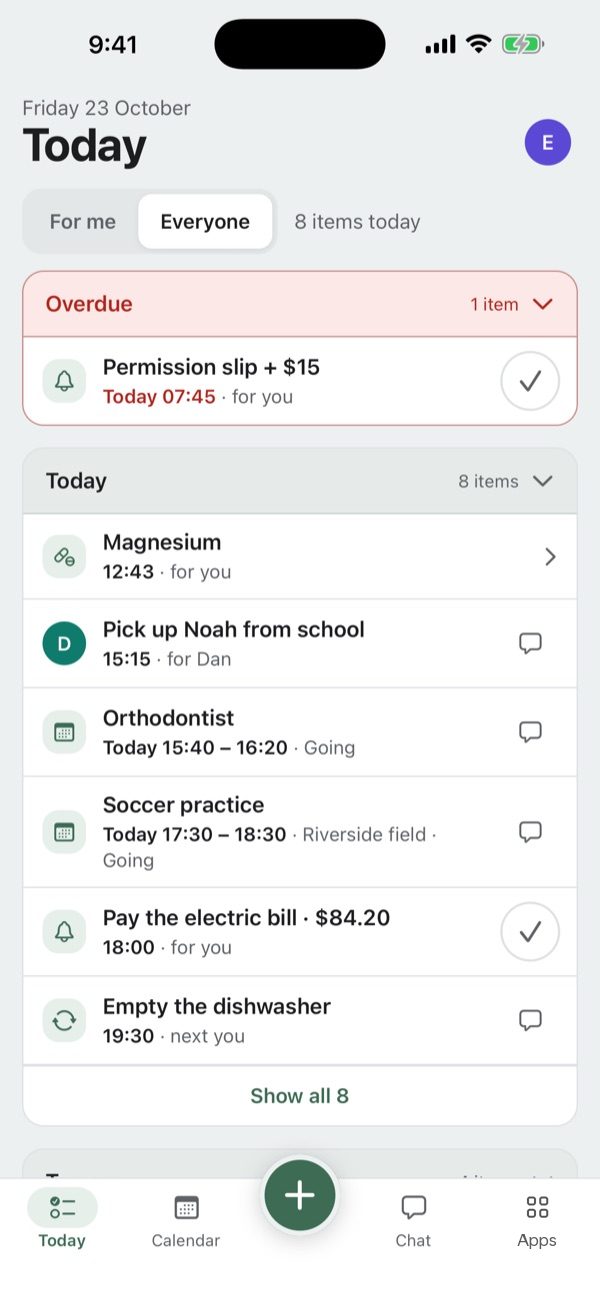
Today Everything that needs you, in order. Tap any row to open it.
Your list
- Your picture Opens Settings: your name, alerts, look and feel, privacy.
- For me · Everyone For me shows only what is yours; Everyone shows the whole family’s.
- Overdue What is late stays at the top, in red, until someone taps done.
- Done Tap the round tick when it’s done.
- Today, Tomorrow, Later One section for each day. Tap a title to fold it.
- A medicine A dose for you or your child. Tap it for Taken or Skip.
- A reminder The letter is whose it is; a bell means it is yours. Tap it for Snooze, Edit and the details.
- Chat about it Talk with the people on that item, right from the row.
- An event With Going or Can’t go, and its own chat for the people invited.
- A chore Chores show on their day, with whose turn it is.
- Show all A few rows show at first. Tap to see the whole day.
Tomorrow, Later and bills
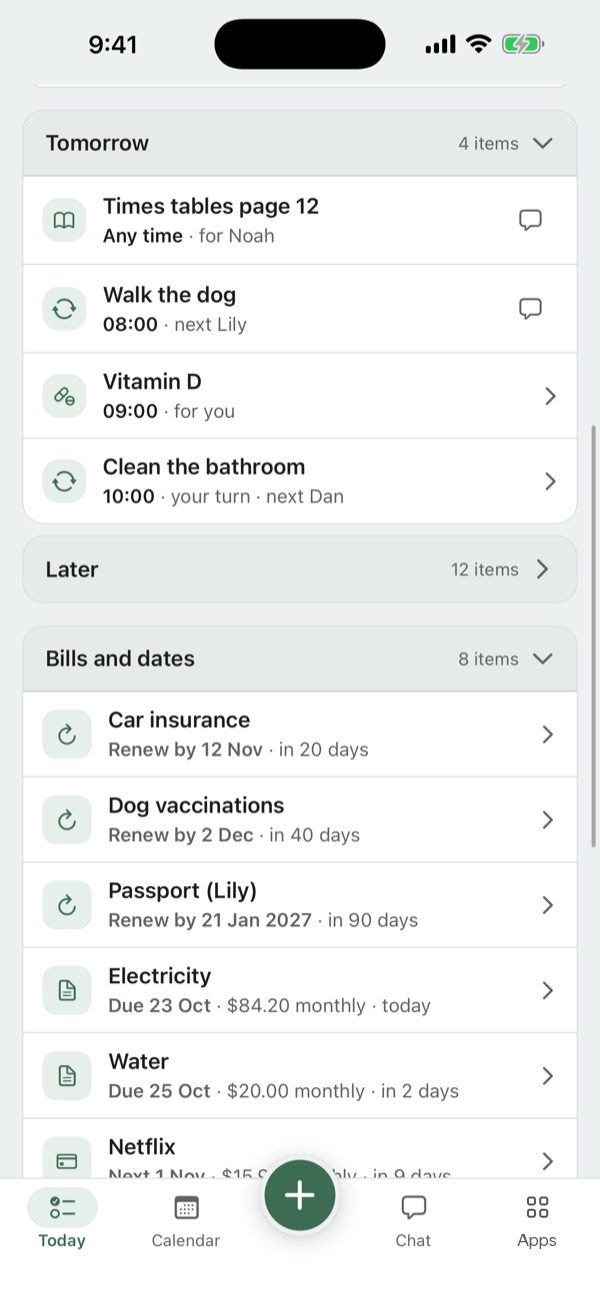
- Homework Due at school, for a child. The child ticks Finished; parents see it.
- Later The days after tomorrow. Tap it to open them in full.
- Bills and dates Bills, renewals and birthdays coming up soon.
- A renewal Insurance, a passport, the dog: when it runs out and how many days are left.
- A bill How much, how often and when it is due.
Birthdays and shortcuts
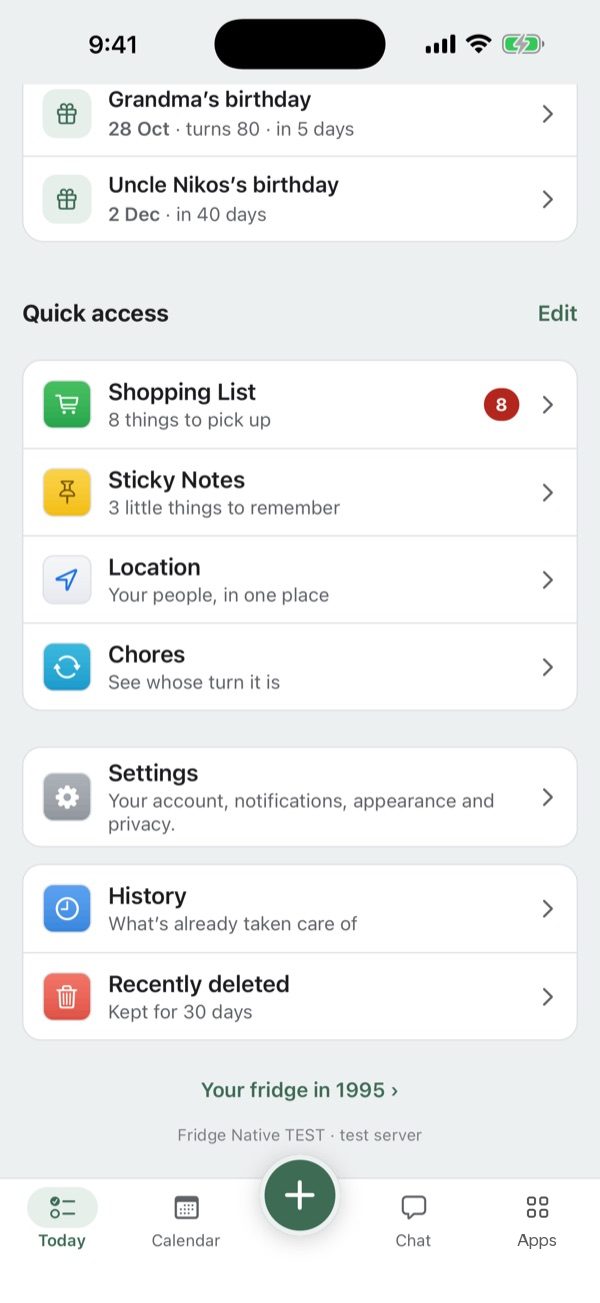
- A birthday The date, how old they turn and how many days to go.
- Quick access Your own shortcuts. Nobody else’s change.
- Edit Pick your shortcuts and drag them into order.
- A shortcut Opens that page straight away.
- Settings, History, Recently deleted Your account and alerts, what is already taken care of, and anything you deleted in the last 30 days.
See it work
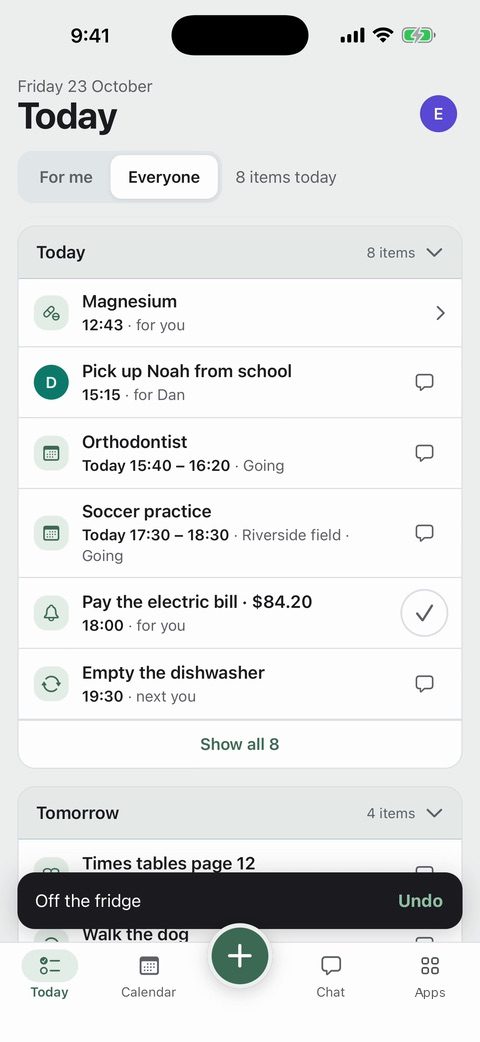
Calendar Everything with a date, by day, week or month.
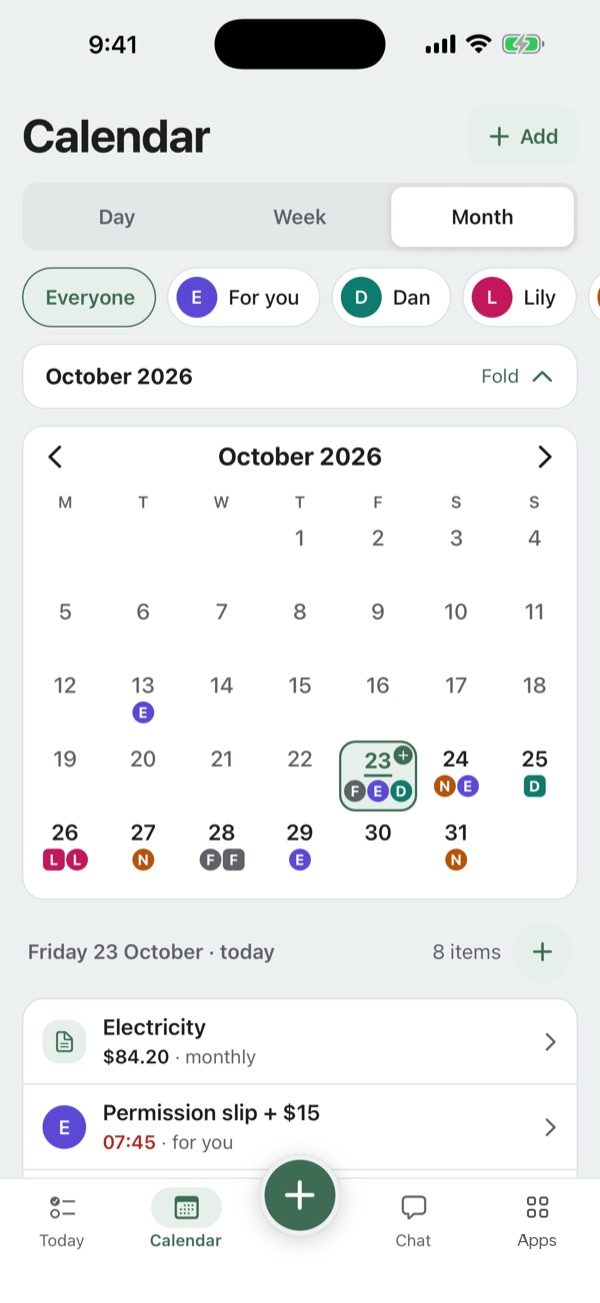
Top of the Calendar
- Add Add an event or a reminder.
- Day · Week · Month Switch how much you see at once.
- People Everyone, or one person’s things only.
- Fold Fold the month away to see more of the day.
- Month Go to the previous or next month.
- Letters Each letter is a person with something that day, so it works without colours. Tap a day to see it.
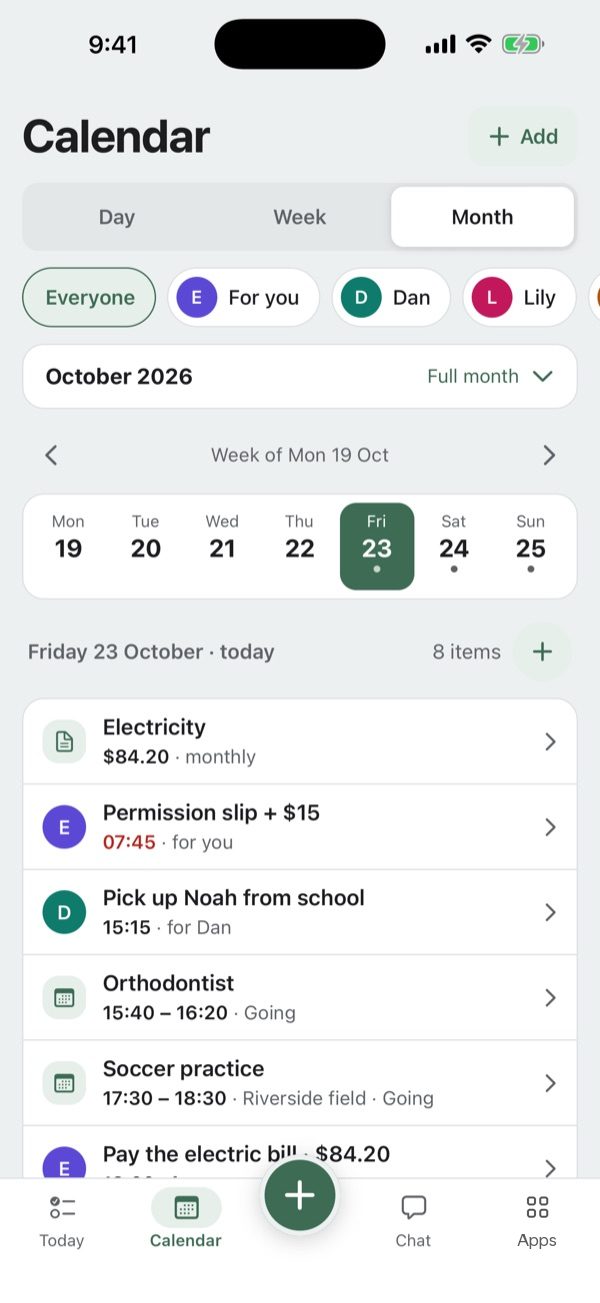
The day you tapped
- Week Go to the previous or next week.
- A day Tap a day to see it. A dot means something is planned.
- The day Everything on the day you tapped.
- Add Add something on this day.
- A row Tap it to open it: Done, Snooze, Edit, Going.
See it work
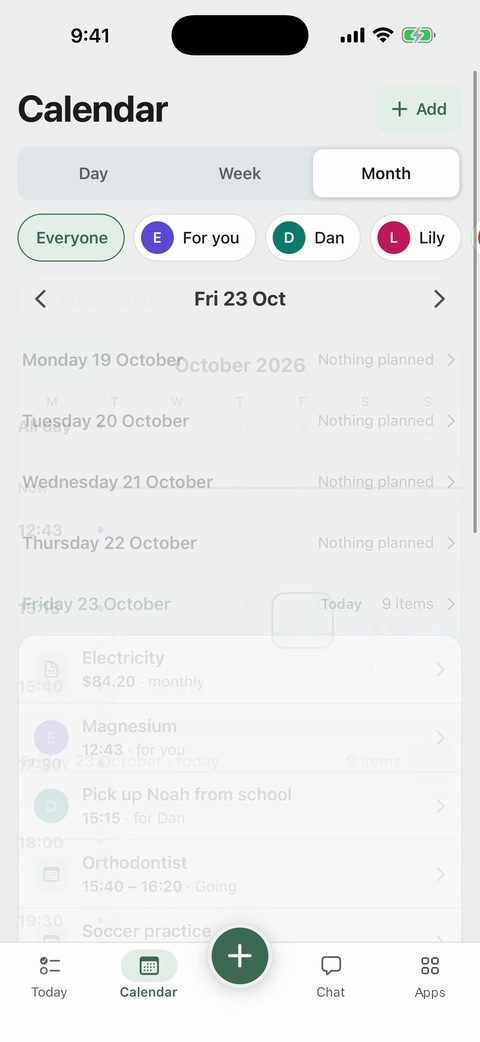
The + button The green + at the bottom of every screen: say it, type it, or pick what to add.
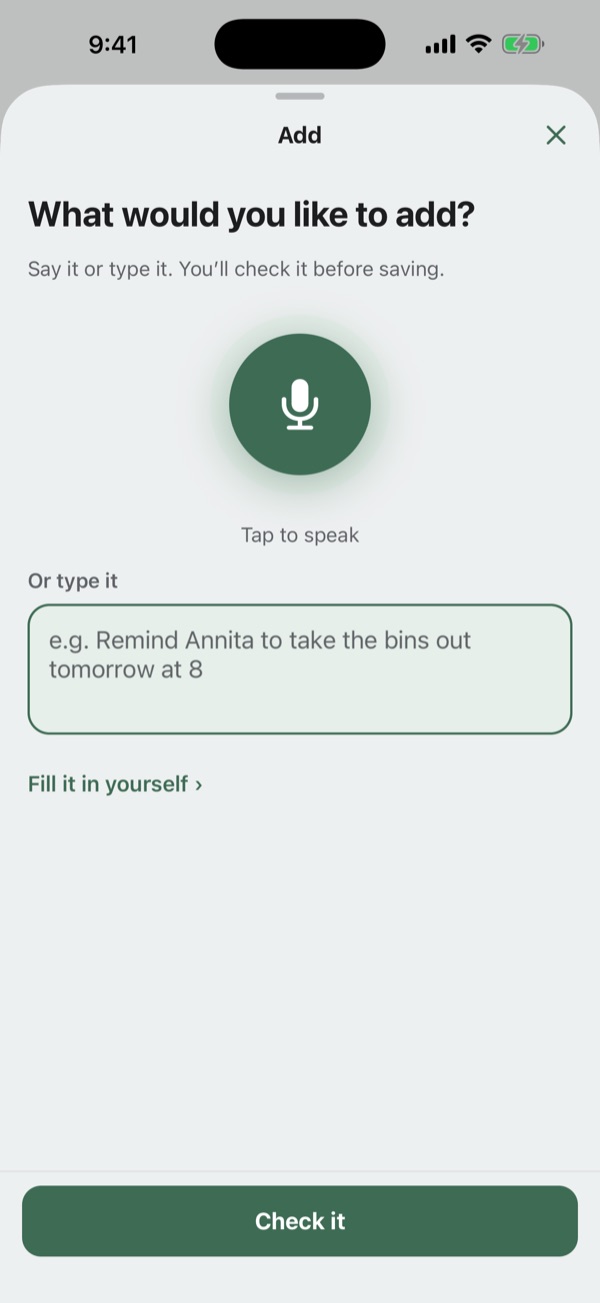
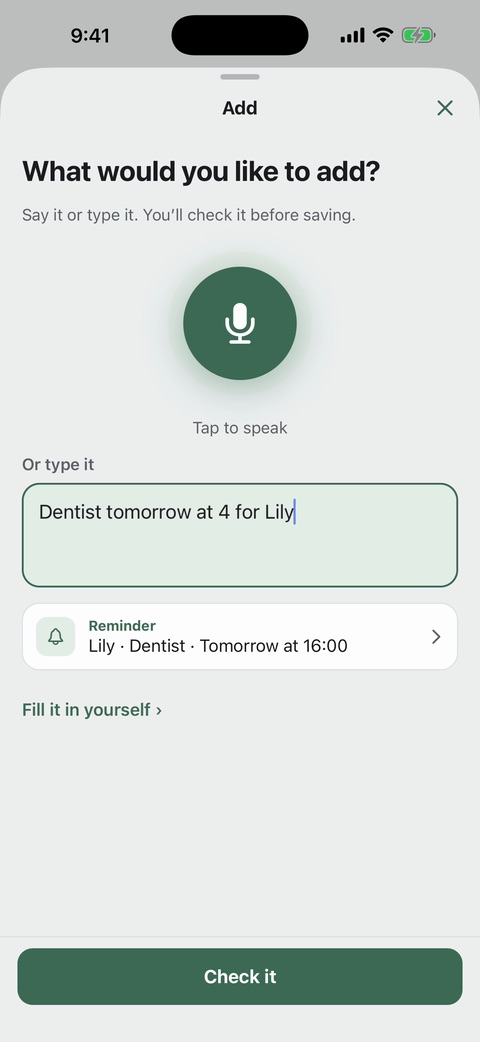
Say it or type it
- Add Everything new starts here.
- Close Close without adding anything.
- Say it Tap and talk: “Remind Dan to take the bins out tomorrow at 8.” Check it, then save.
- Or type it The same, typed: “Dentist tomorrow at 4 for Lily”.
- Fill it in yourself Choose what to add and fill in the form yourself.
- Check it Turns what you said or typed into a sentence to check.
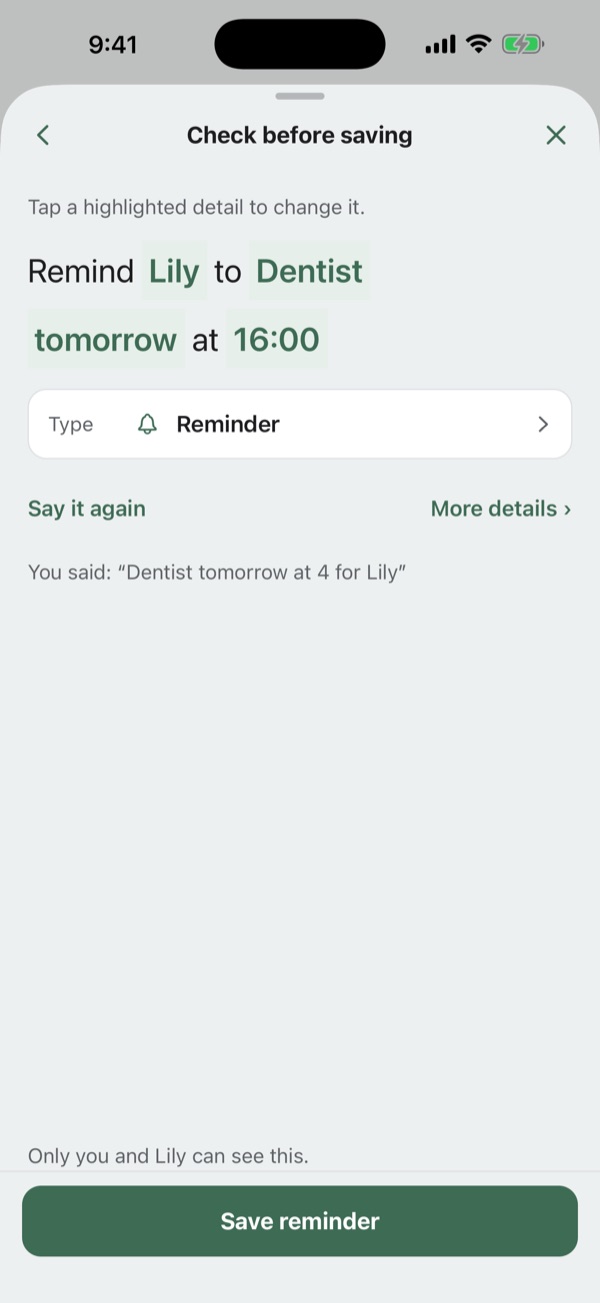
Check before saving
- The sentence Who, what and when, in words. Tap a highlighted part to change it.
- Type A reminder, or pick another kind.
- Say it again If it got something wrong, say it again.
- More details Open the whole form.
- Save reminder Only you and the people it is for can see it.
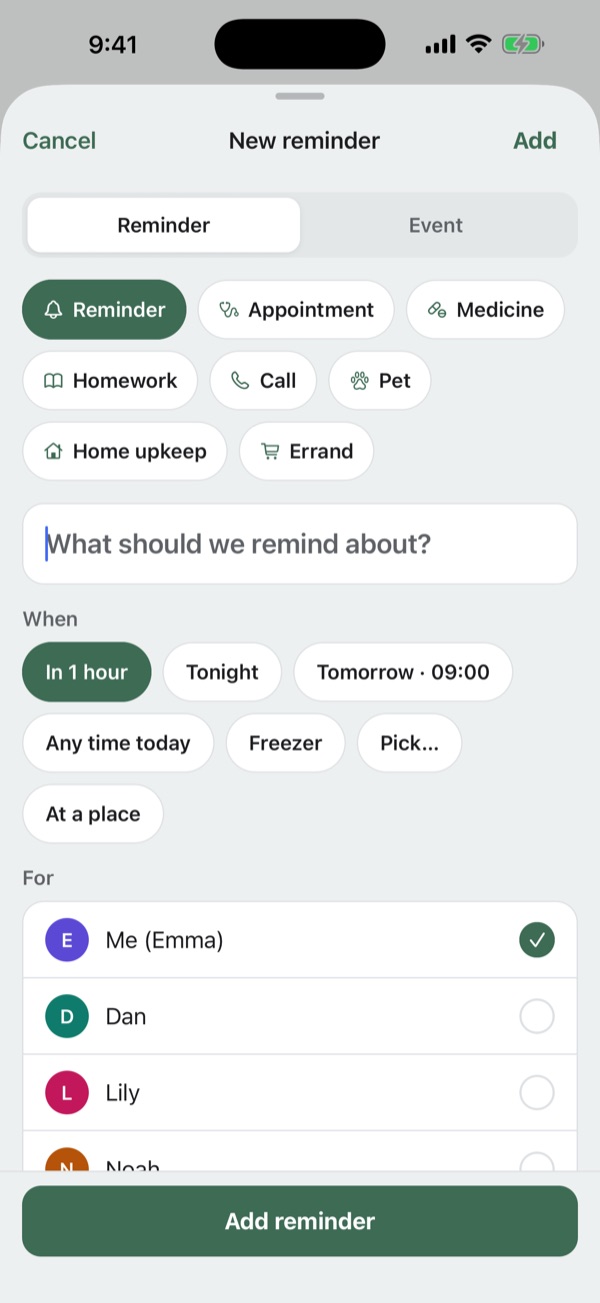
Or fill it in yourself
- Reminder · Event Switch between a reminder and an event.
- The kinds Reminder, Appointment, Medicine, Homework, Call, Pet, Home upkeep and Errand.
- When In an hour, tonight, tomorrow, any time today, the Freezer, or pick a day.
- For Who it is for. Everyone you pick sees it.
See it work
Chat The family chat and private chats. A busy chat sends one alert, not twenty.
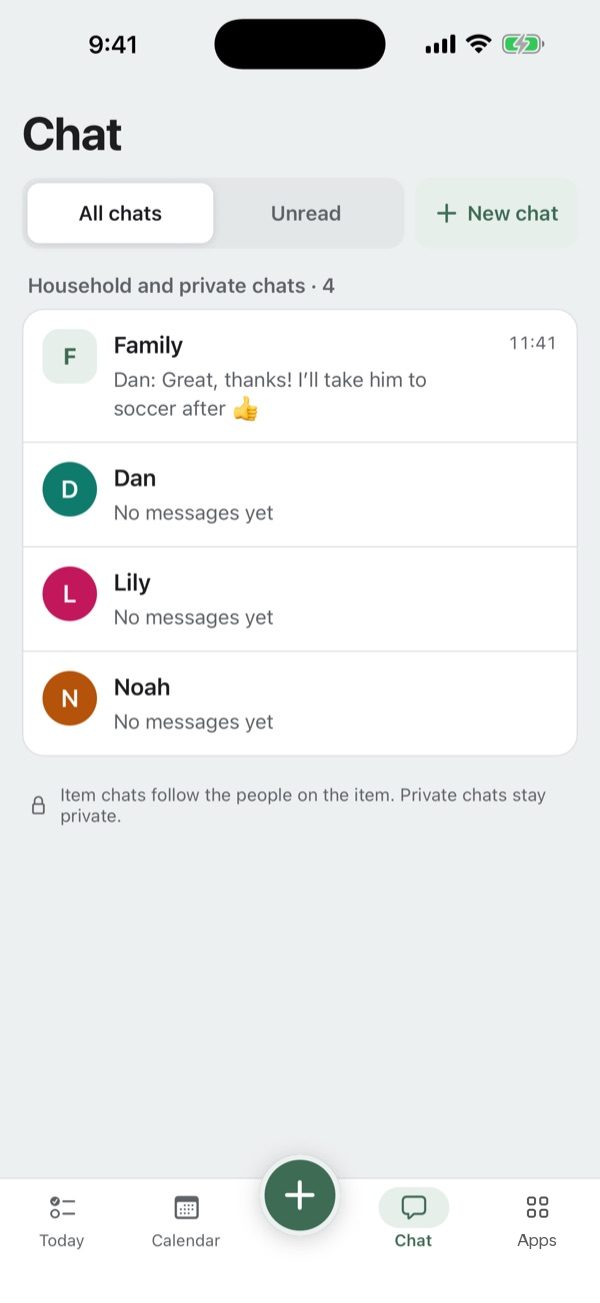
Your chats
- All chats · Unread Show only the chats with something new.
- New chat Start a private chat with someone you share a fridge with.
- The family chat Everyone on this fridge can read it. Each fridge has its own.
- Private chats One for each person you share a fridge with. Only the two of you can see it.
- Chats on things Reminders and events have their own chat, with just the people on them.
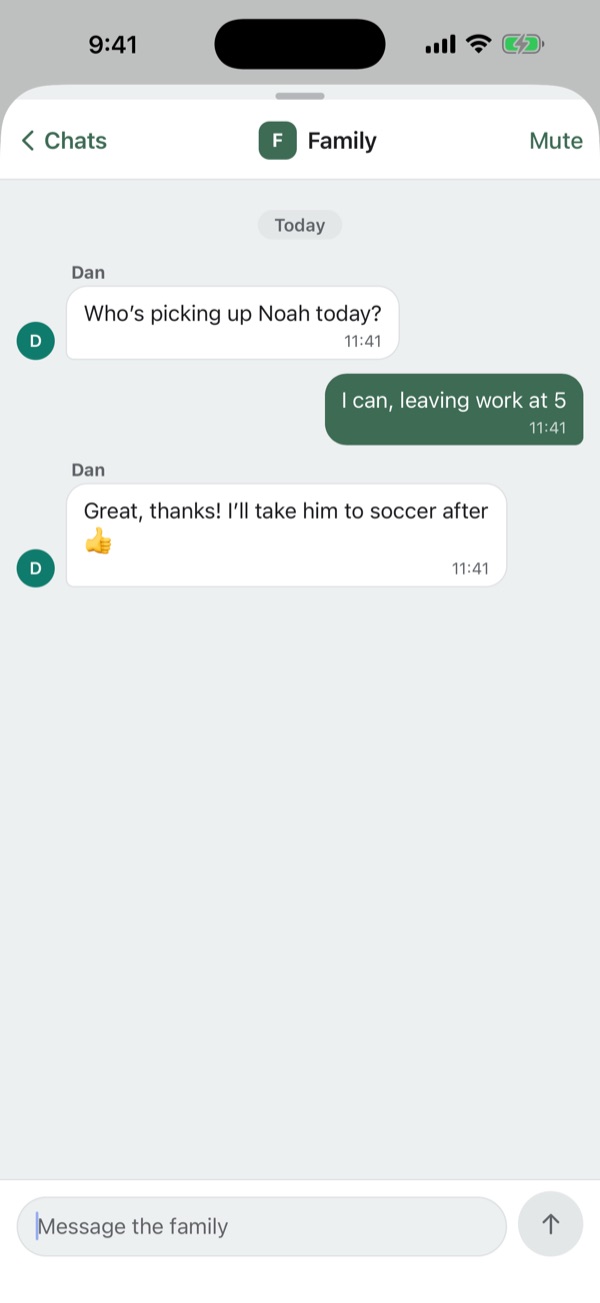
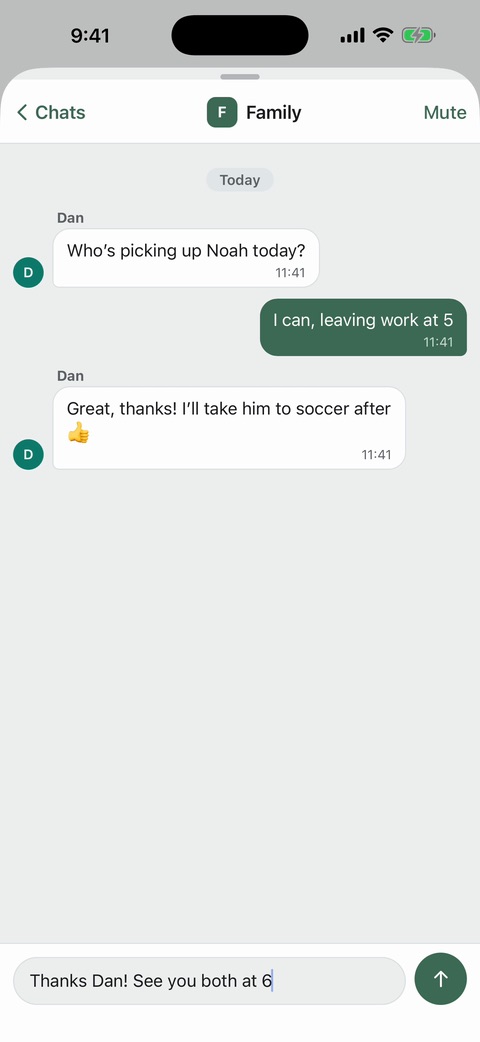
Inside a chat
- Chats Back to the list of chats.
- Mute No alerts from this chat. You can still read and write.
- Their message With their name and the time.
- Your message On the right. Hold it to delete it.
- Message Write, then tap the arrow to send.
- Send Send it. Everyone in the chat sees it.
See it work
Apps Everything the family shares, in four groups. Each page has its own section below.
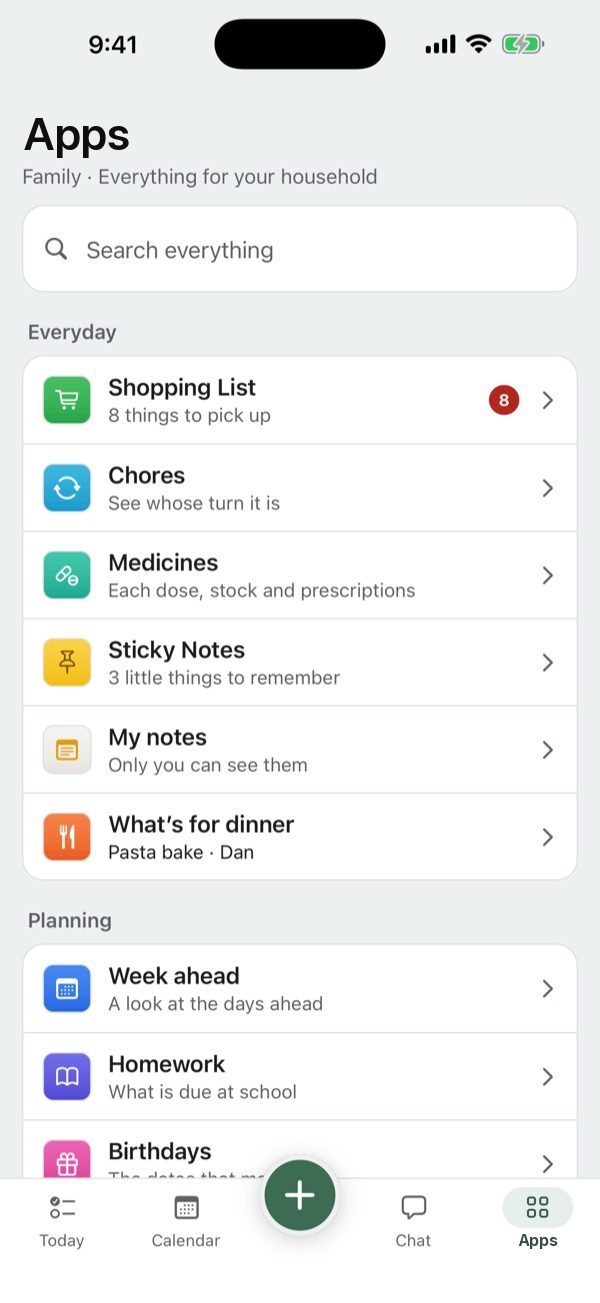
Everyday
- Search Find anything you can see: reminders, events, notes, contacts, homework.
- Groups Four groups: Everyday, Planning, Bills and paperwork, People and privacy.
- A row Opens its page and says what is in it now, like “8 things to pick up”.
- The red number How many things are waiting on that page.
- My notes Private notes only you can see.
- What’s for dinner Tonight’s dinner and who cooks. Everyone sees it on Today.
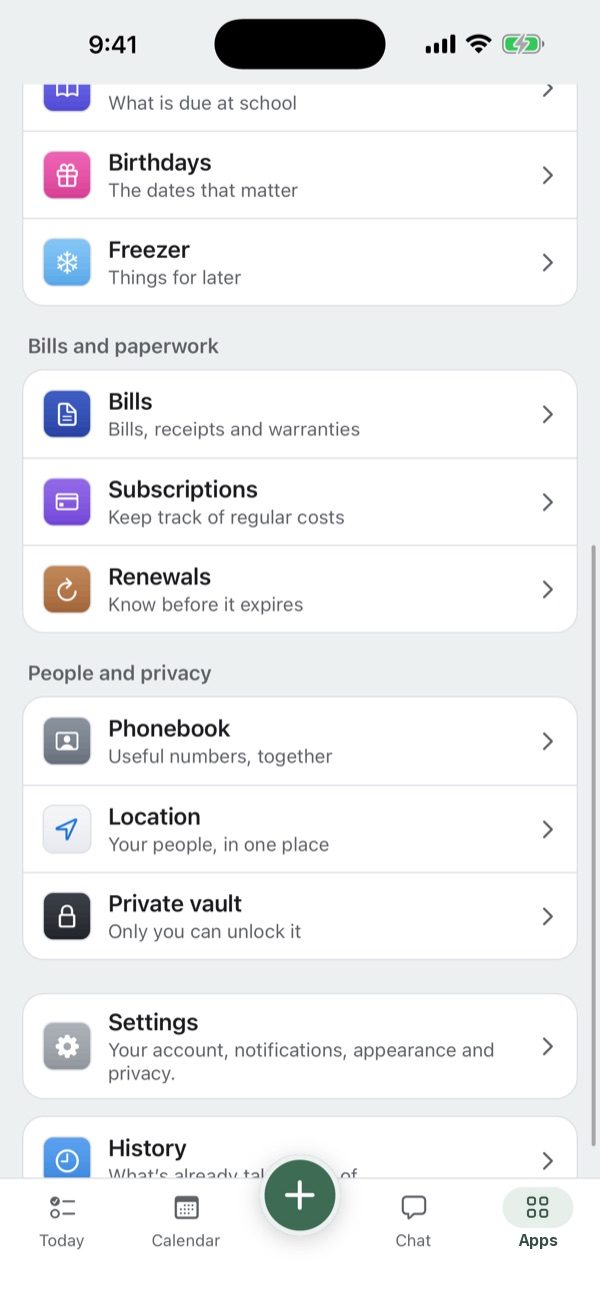
Planning, paperwork and people
- Planning Week ahead, Homework, Birthdays and the Freezer.
- Bills and paperwork Bills, Subscriptions and Renewals.
- People and privacy The Phonebook, Location and your Private vault.
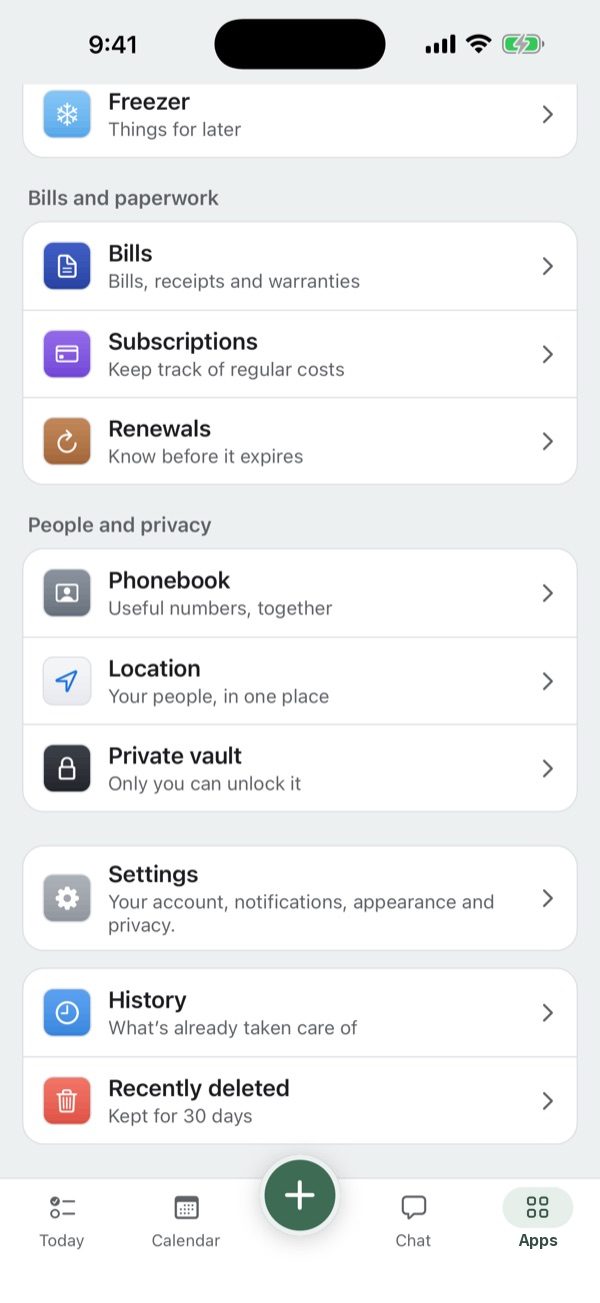
Under the rows
- Settings Your account, notifications, appearance and privacy.
- History What was done, missed or still open in the last 30 days.
- Recently deleted Put back anything deleted in the last 30 days.
The bar at the bottom
- Today Your day: what is due, for you or everyone.
- Calendar Day, Week and Month, with everyone’s reminders and events.
- Add + Add anything: say it, type it, or pick what to add.
- Chat The family chat and private chats.
- Apps Everything the family shares, in four groups.
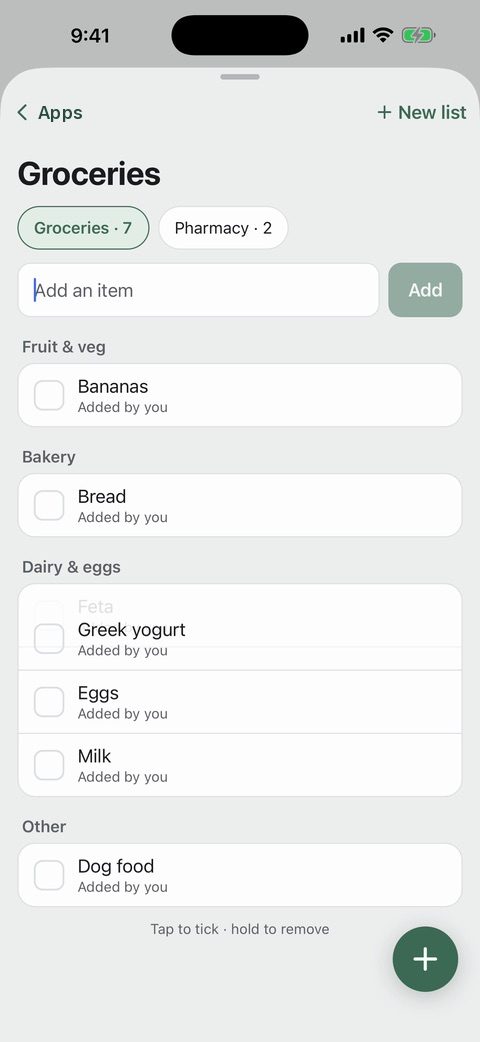
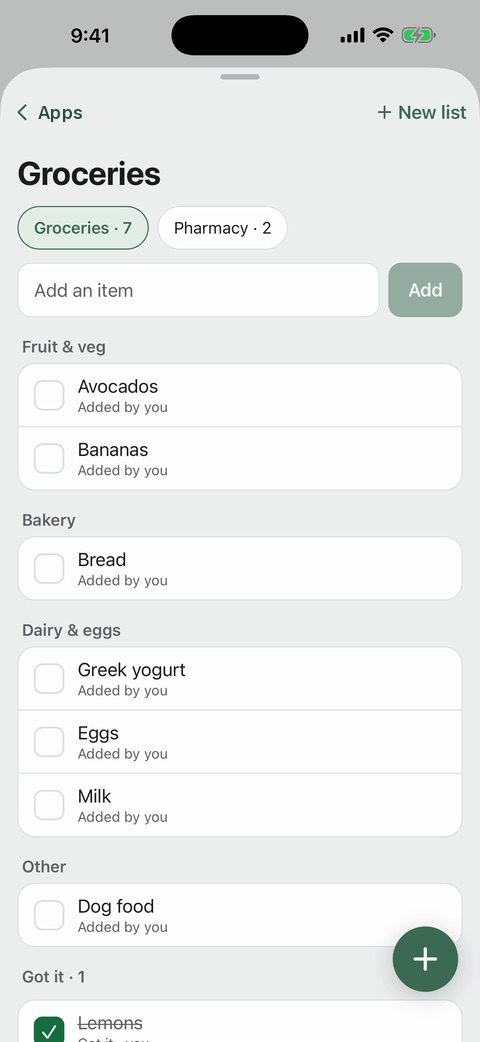
Shopping List One list the whole family adds to, sorted by supermarket aisle.
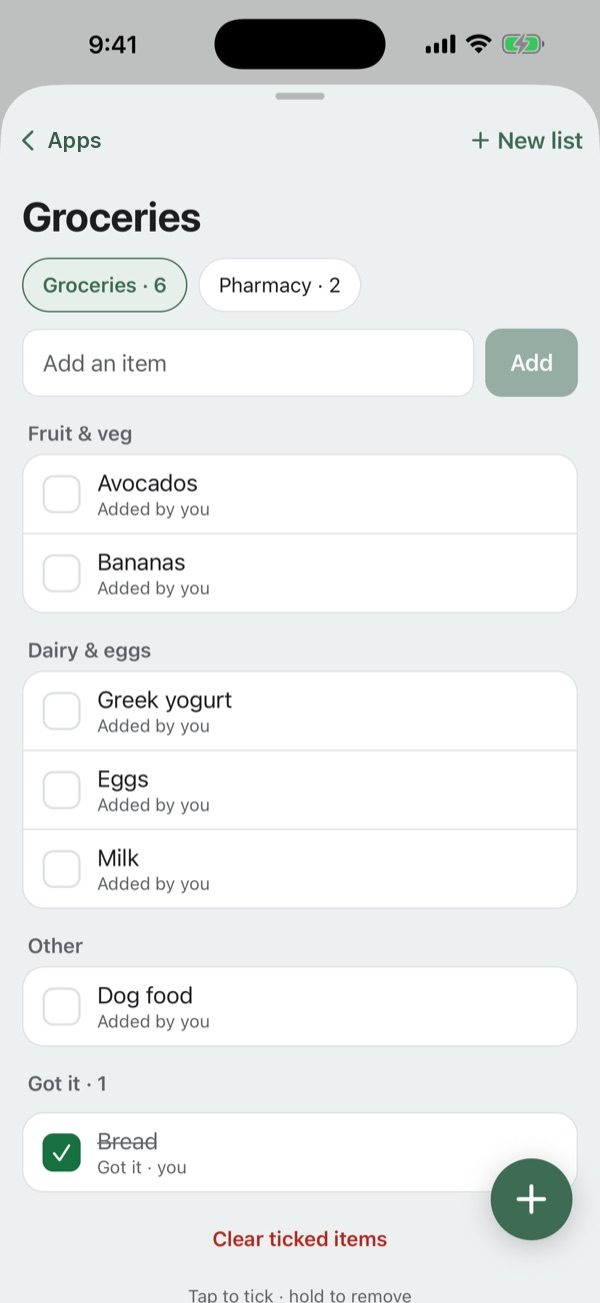
A list
- New list Start another list, like Pharmacy or a party.
- Your lists Each list has its own tab, with how many things are left on it.
- Add an item Type it and tap Add. Already on the list? It isn’t added twice.
- Aisles Items sort themselves: Fruit & veg, Bakery, Dairy & eggs and so on.
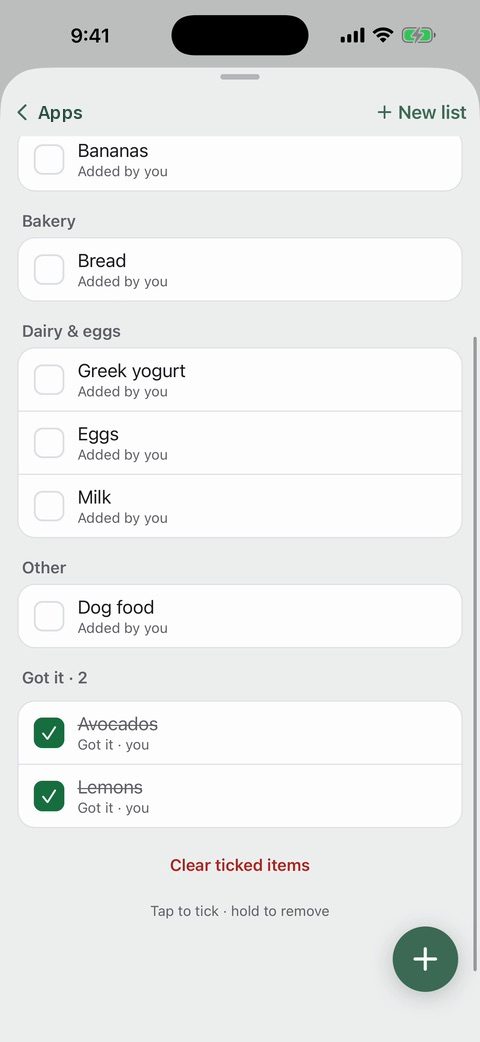
- Tick Got it. Tap the box and it moves down to Got it, with your name.
- Added by Who put it on the list, so you know who to ask which brand.
- Got it What you ticked waits here until you clear it.
- Clear ticked items At the till, clear what you got. The rest stays on the list for next time.
See it work
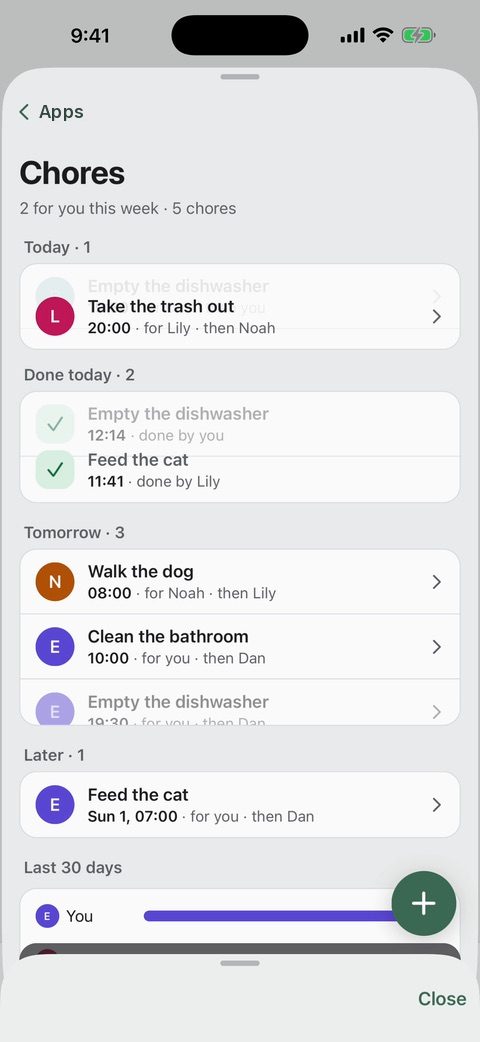
Chores Whose turn it is, without asking. The turn moves on when it’s done. Tap the green + to add a chore.
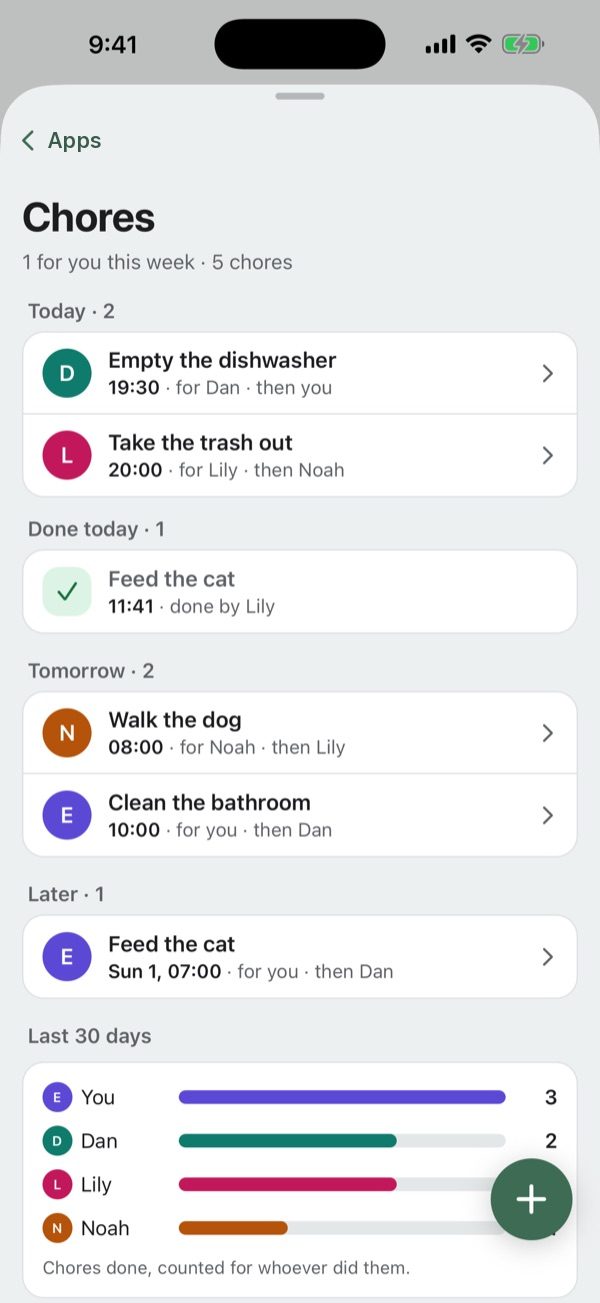
The chores
- This week How many are yours this week.
- The day Each chore shows once, on the day it is next due.
- A chore The letter is whose turn it is; “then” says who goes next. Tap it to mark it done, skip or swap.
- Done today What is already done, and by whom.
- Last 30 days Who did how many. Doing someone else’s turn counts for you.
See it work
Medicines Doses, stock and prescriptions, only for you. Alerts never say the medicine’s name. Tap the green + to add one.
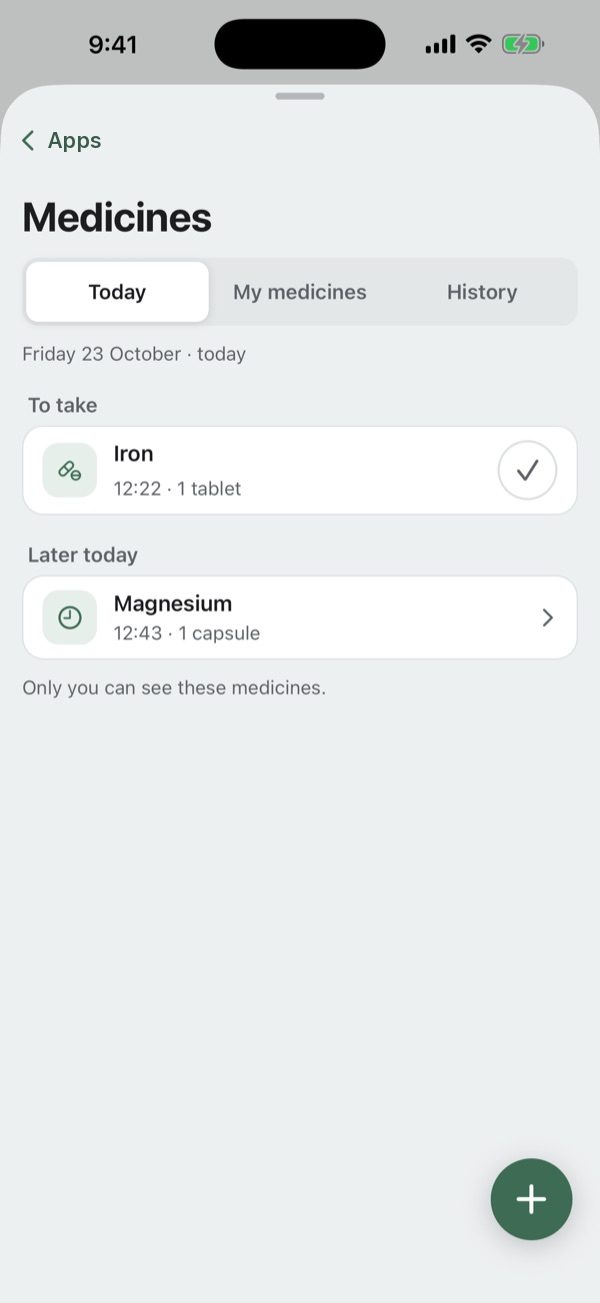
Your medicines
- Today · My medicines · History What to take today, each medicine once with its stock, and the last 30 days.
- To take What is due now.
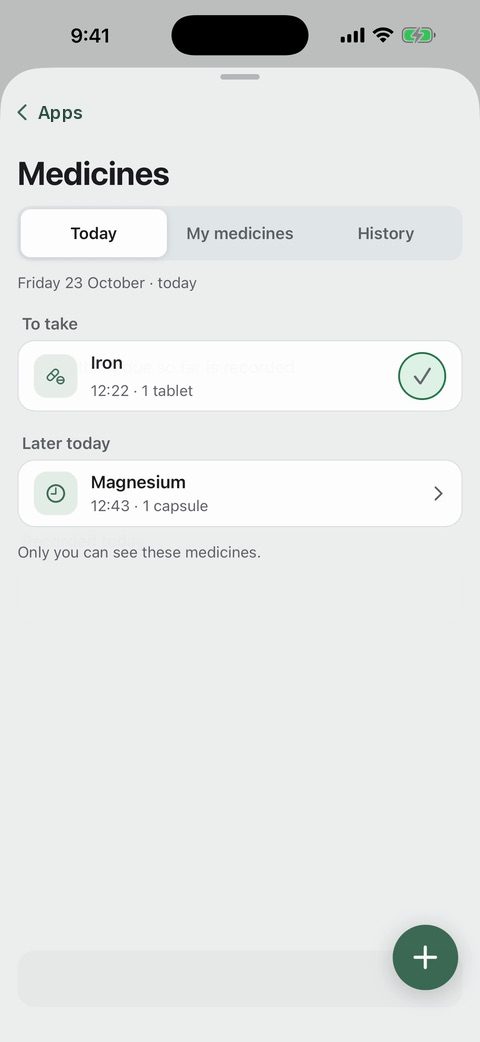
- Taken Tap the round tick when you took it. Undo shows for a few seconds.
- A medicine Tap it for the dose, stock and prescription details.
- Later today Doses that are not due yet.
- Only you Only you see your medicines’ stock and prescriptions.
See it work
Sticky Notes Short notes on the fridge door, for everyone or certain people. Tap the green + to write one.
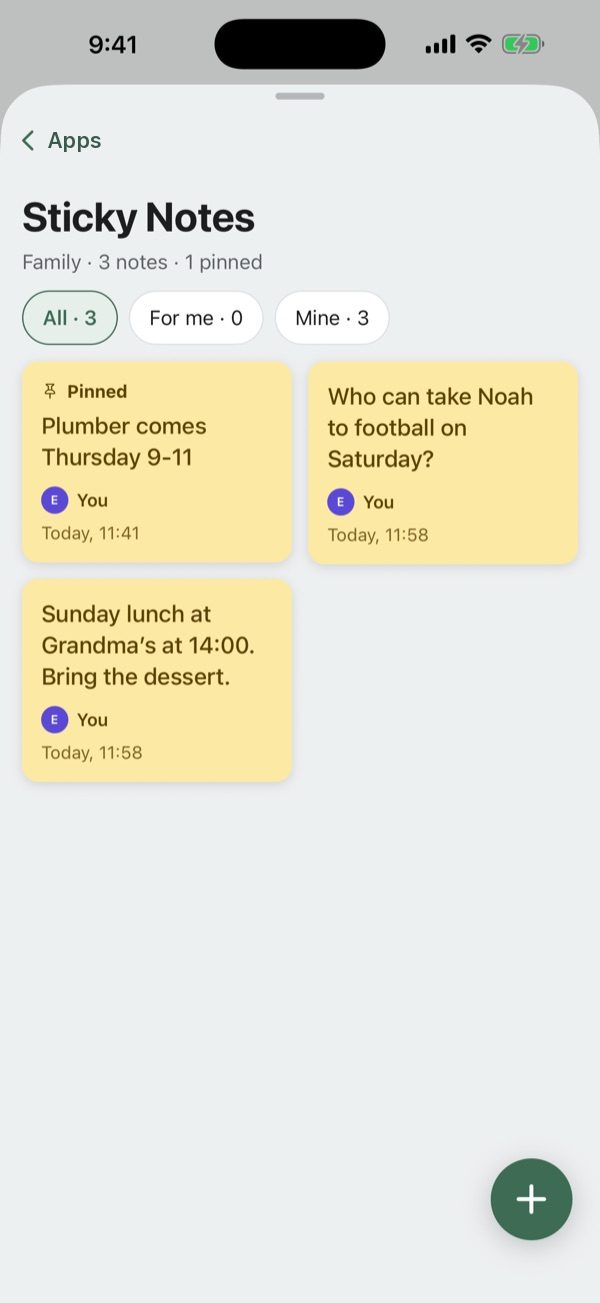
The notes
- Notes How many notes there are, and how many are pinned to the top.
- All · For me · Mine All notes, the ones for you, or the ones you wrote.
- Pinned A pinned note stays at the top.
- A note Who wrote it and when. Tap it to open it.
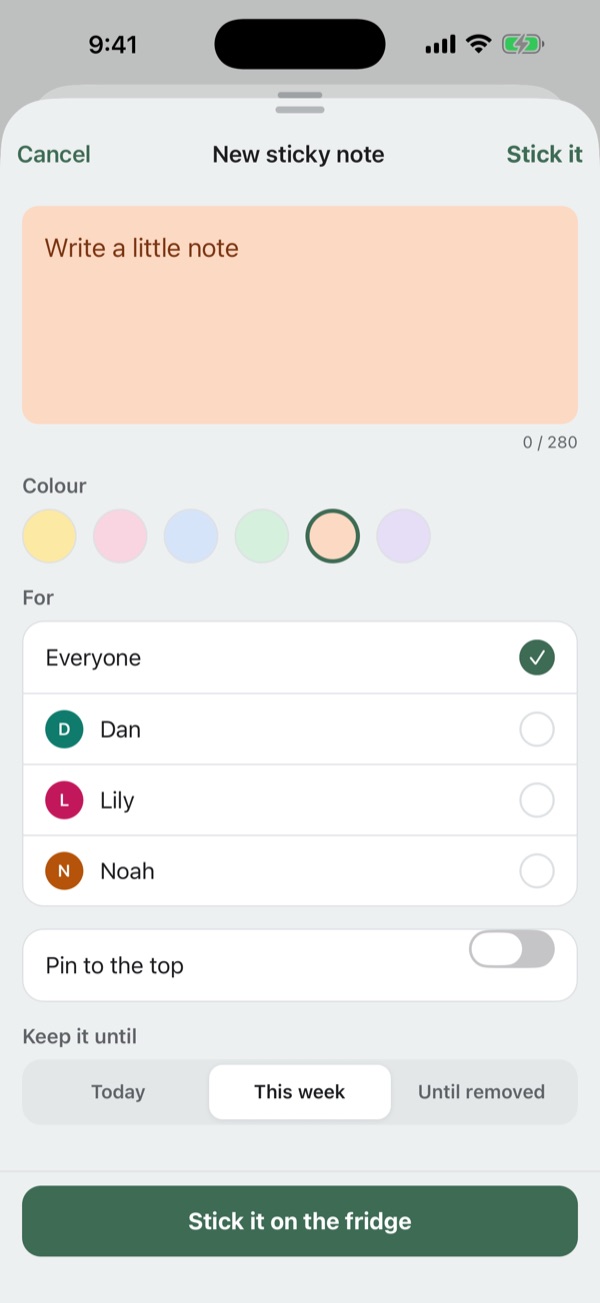
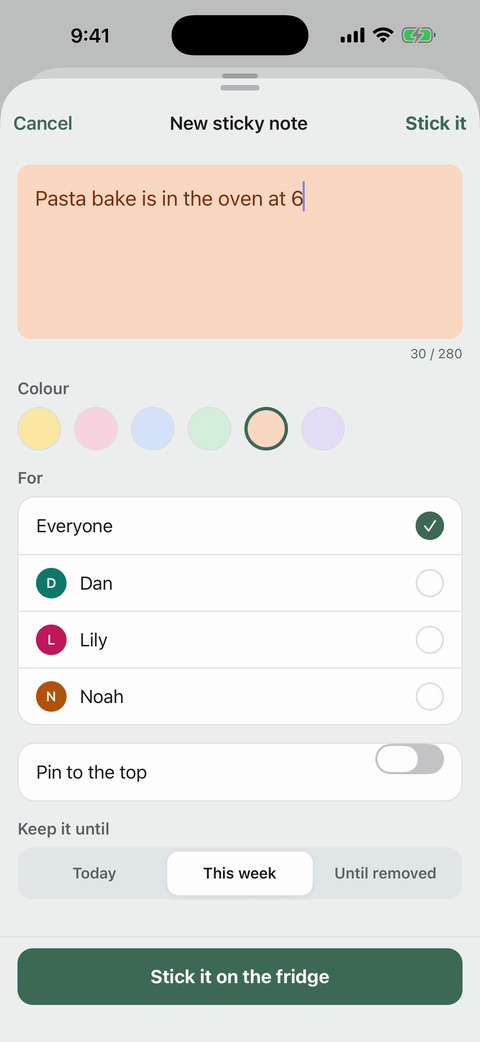
A new note
- Write a note Up to 280 characters.
- Colour Pick a colour.
- For Everyone, or only certain people.
- Pin to the top A pinned note stays at the top.
- Keep it until Today, this week, or until someone removes it.
- Stick it on the fridge Everyone it is for can read it.
See it work
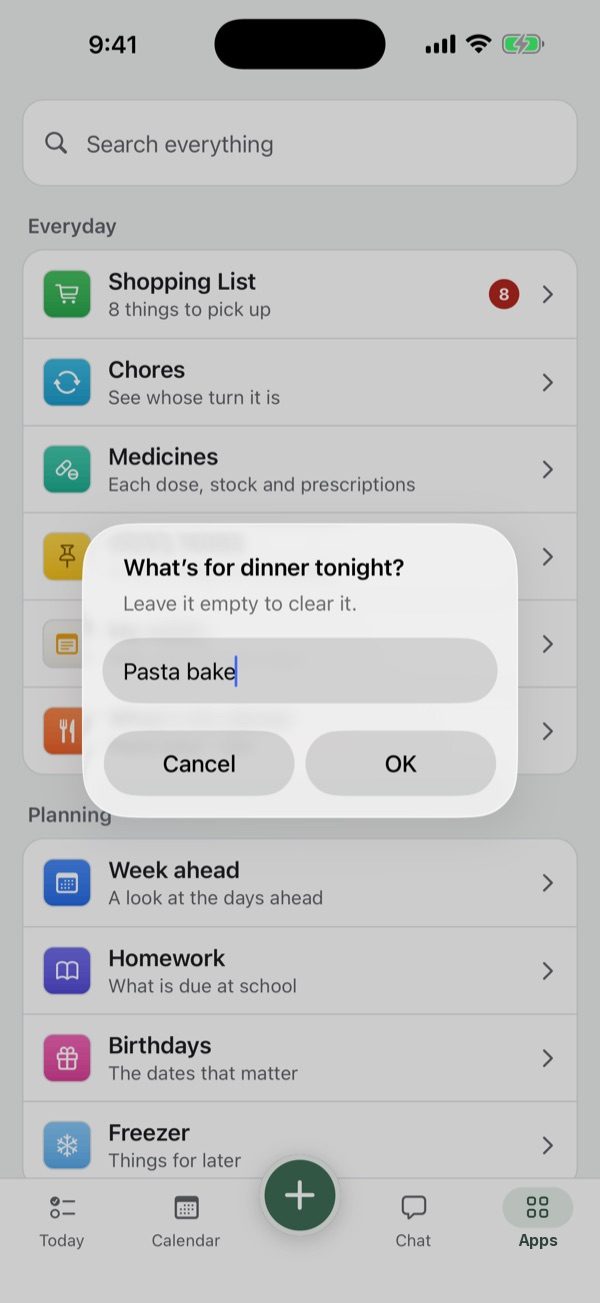
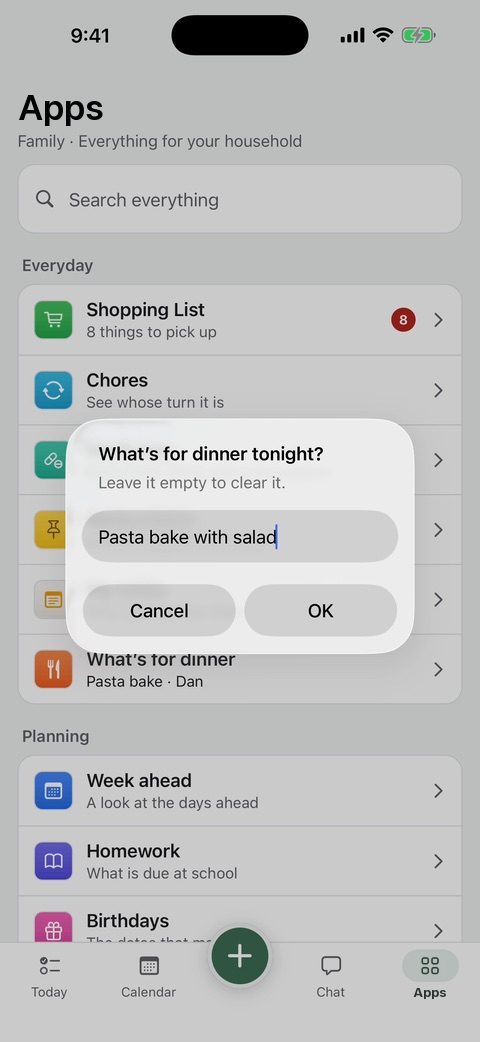
What’s for dinner Tonight’s dinner on everyone’s Today. Open it from Apps.
Tonight
- What’s for dinner One line for tonight, for the whole fridge.
- Tonight What you’re eating. Leave it empty to clear it.
- Cancel Close without changing anything.
- OK Everyone sees it on Today.
See it work
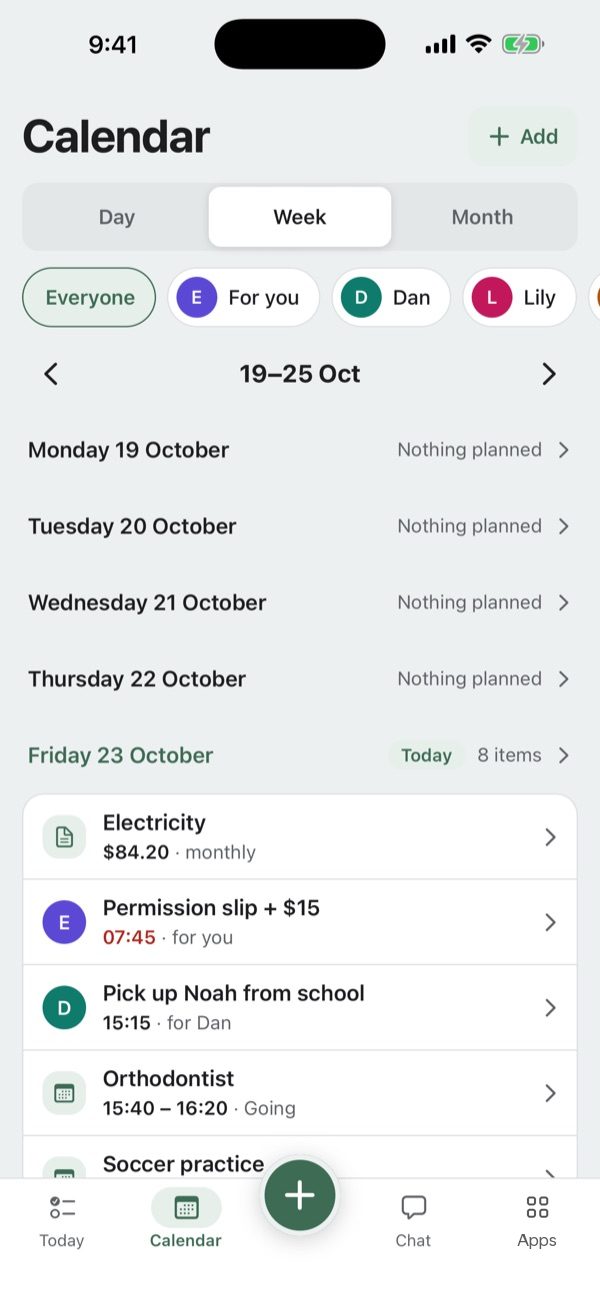
Week ahead A look at the days ahead: the whole week on one page, a line for every day. Open it from Apps.
The week
- Week The whole week on one page.
- The week Go to the previous or next week.
- A quiet day “Nothing planned”. Tap a day to open it or to add something.
- A day Everything on that day. Today is marked.
- A row Tap it to open it.
Homework School work for the children, with due dates and files. Only the children and their parents see it. Tap the green + to add some.
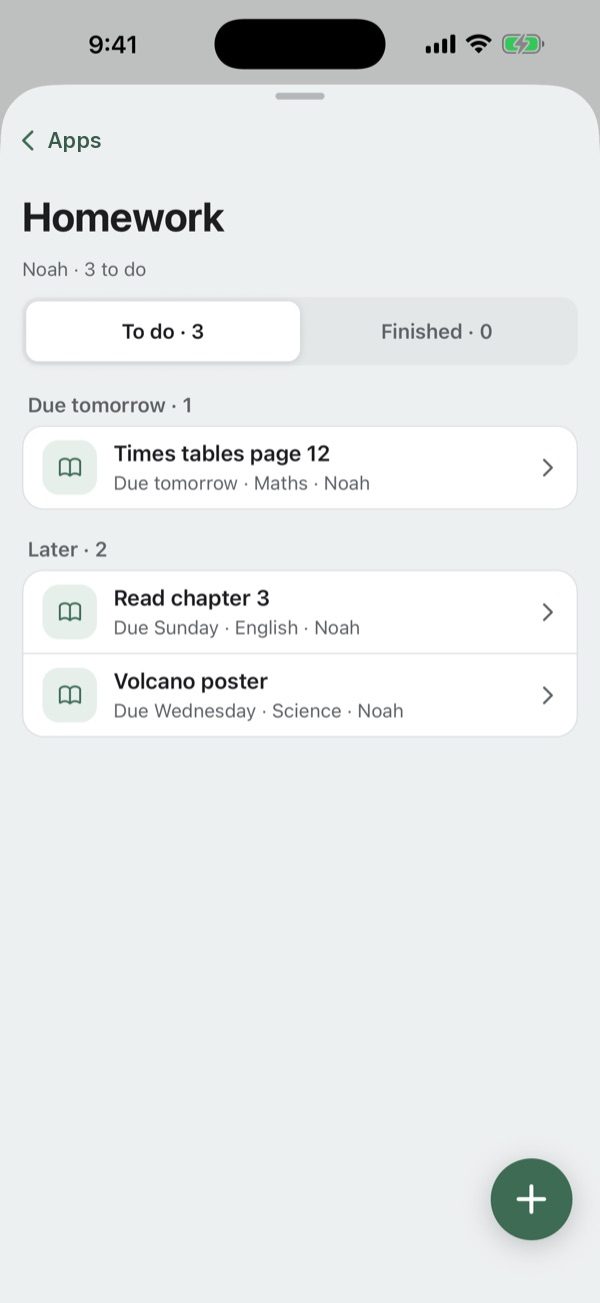
Homework
- Whose Your own homework, or your children’s if you are their parent.
- To do · Finished What is still to do, and what is done.
- Due tomorrow Sorted by the day it is due at school: past due, today, tomorrow, later.
- A homework Tap it for the instructions and files. The child marks it finished.
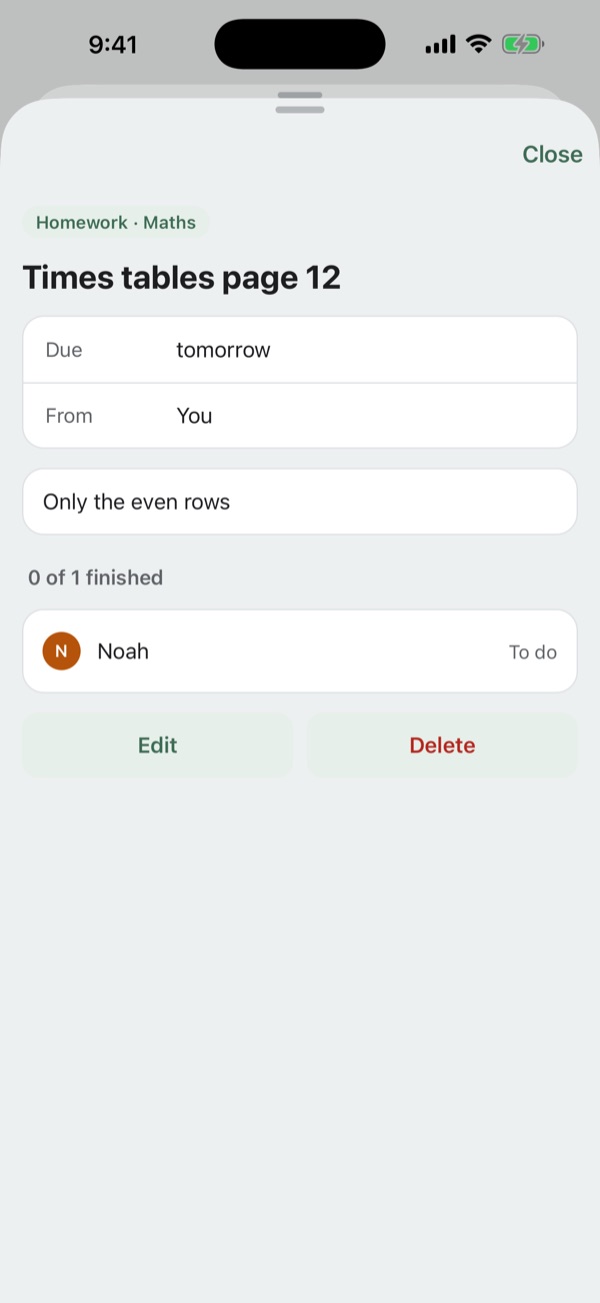
One homework
- Due The day it is due at school.
- Instructions What to do, and any files.
- Finished How many have finished. The child marks it finished on their own phone; parents see it here.
- Each child Who it is for, and whether it is still To do.
Birthdays The dates that matter, with a heads-up the morning before. Tap the green + to add one.
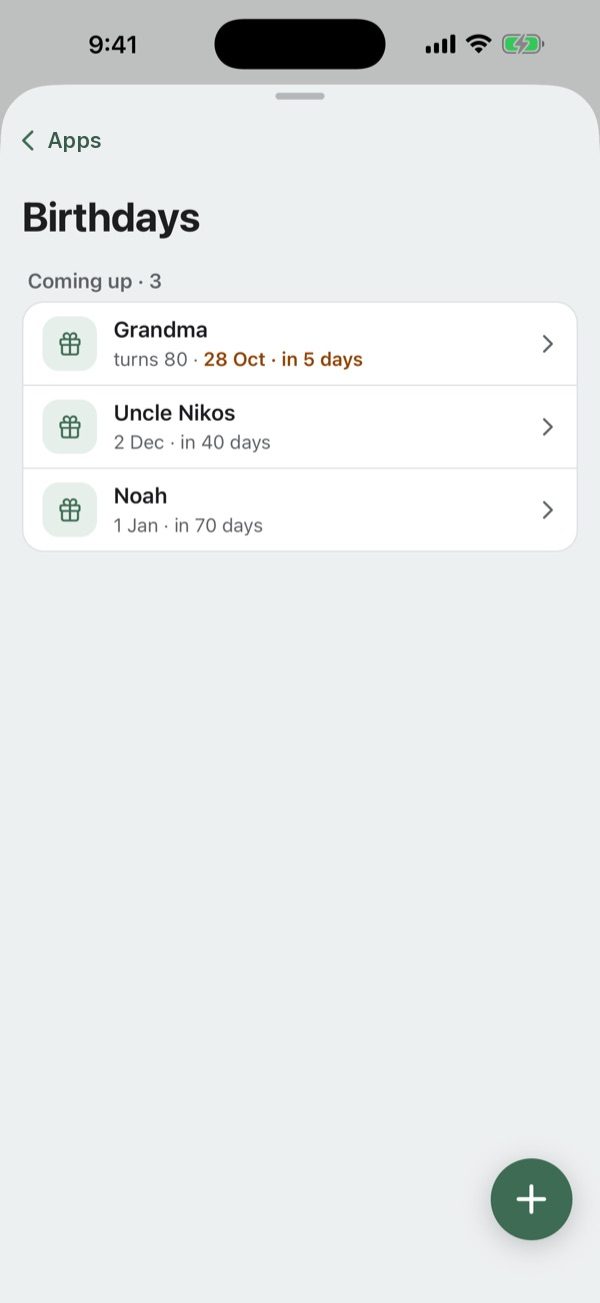
Birthdays
- Coming up The next birthdays first.
- A birthday The date, how old they turn, and how many days to go. Tap it to edit.
Freezer Things for later. No date, no alerts, nothing expires. Tap the green + to put something in.
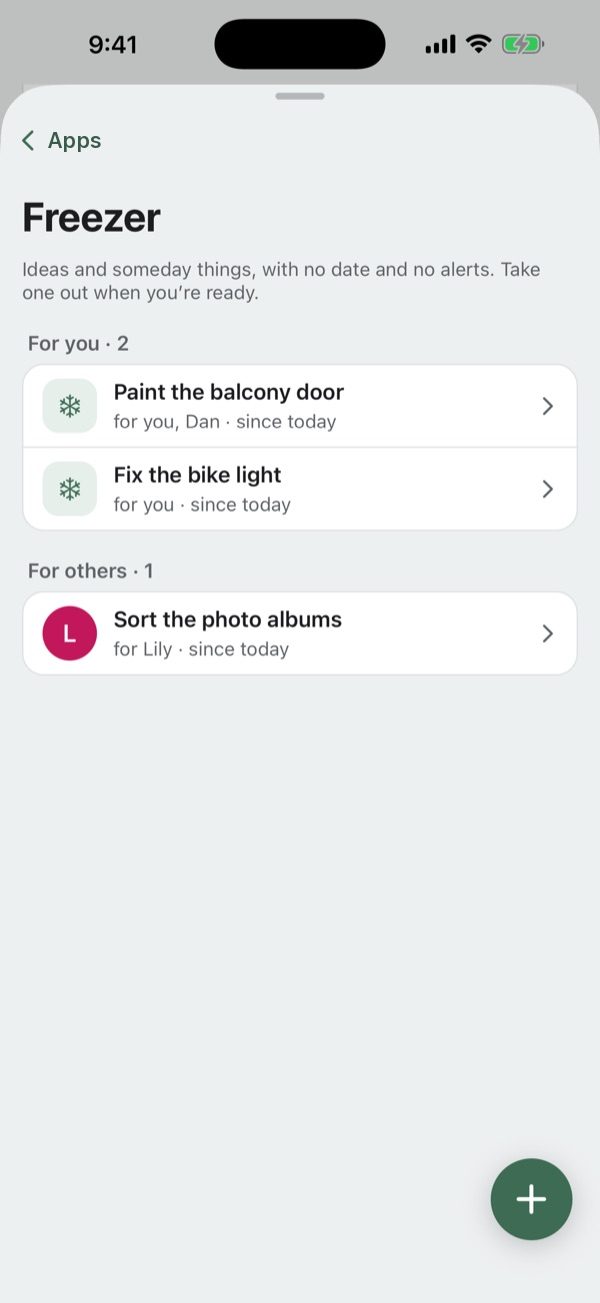
The Freezer
- For later Freezer things never send an alert.
- For you Yours first.
- A thing for later Tap it to give it a day when you’re ready. It becomes a normal reminder.
- For others The ones you put in for someone else.
Bills What is due, who pays, and a Paid button. Receipts and warranties live here too.
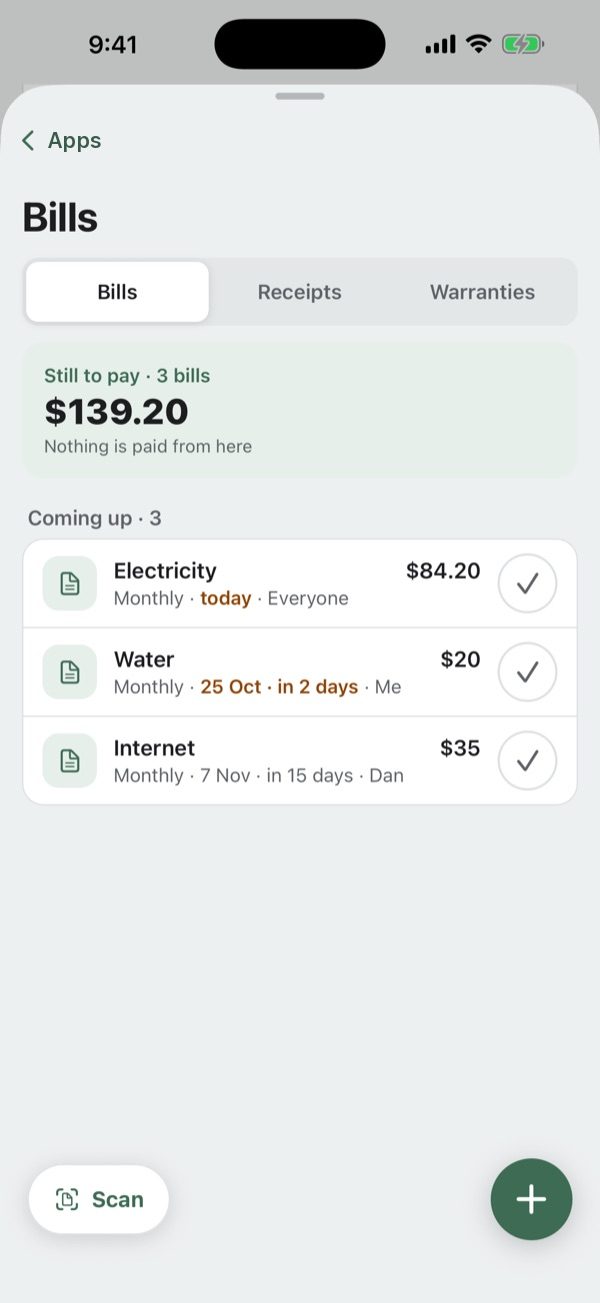
Bills
- Bills · Receipts · Warranties Bills to pay, receipts you kept, and warranties.
- Still to pay The total still to pay. Nothing is paid from here.
- A bill How much, how often, when it is due and who pays.
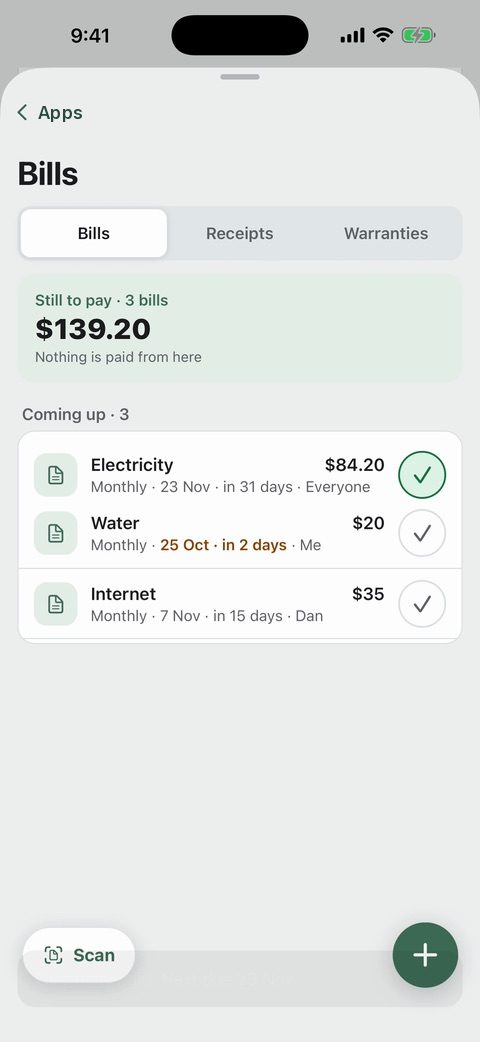
- Paid Tap it when it’s paid. A repeating bill moves to its next date.
- Scan Photograph a bill or receipt instead of typing it.
- Add A bill: the amount, how often, when it’s due and who pays.
See it work
Subscriptions Regular costs in one place, with what they add up to. Tap the green + to add one.
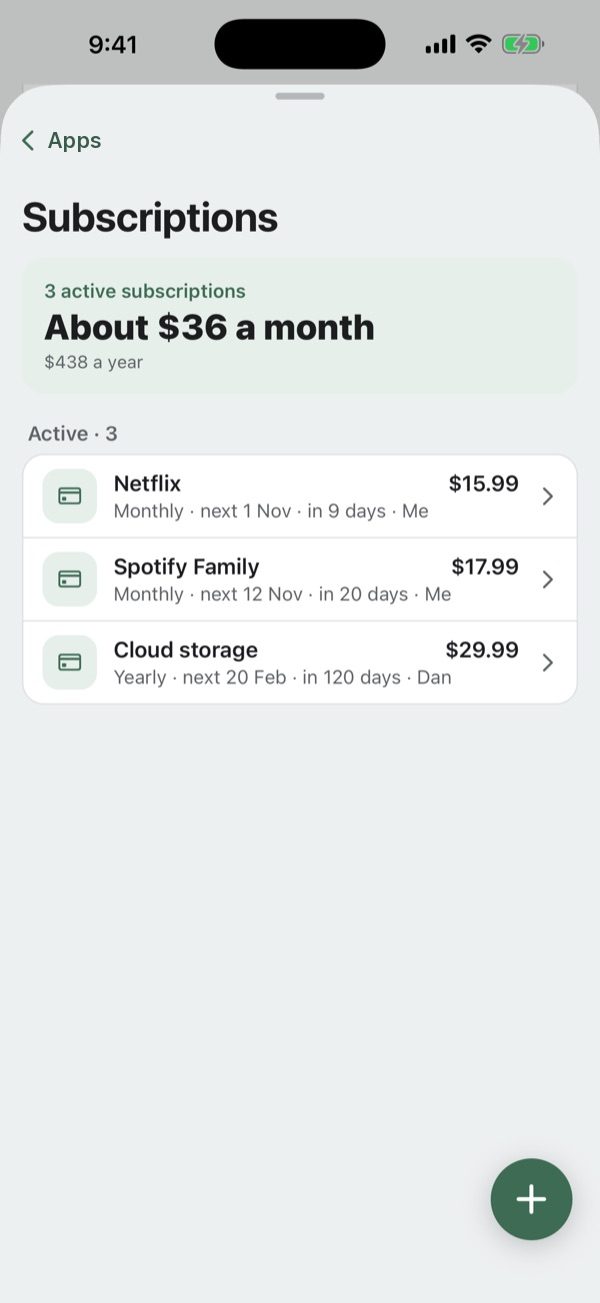
Subscriptions
- Totals About how much a month and a year.
- A subscription It moves to its next charge by itself. Open it to mark it cancelled.
Renewals Things that run out: insurance, passports, the car, the dog. Warned in time. Tap the green + to add one.
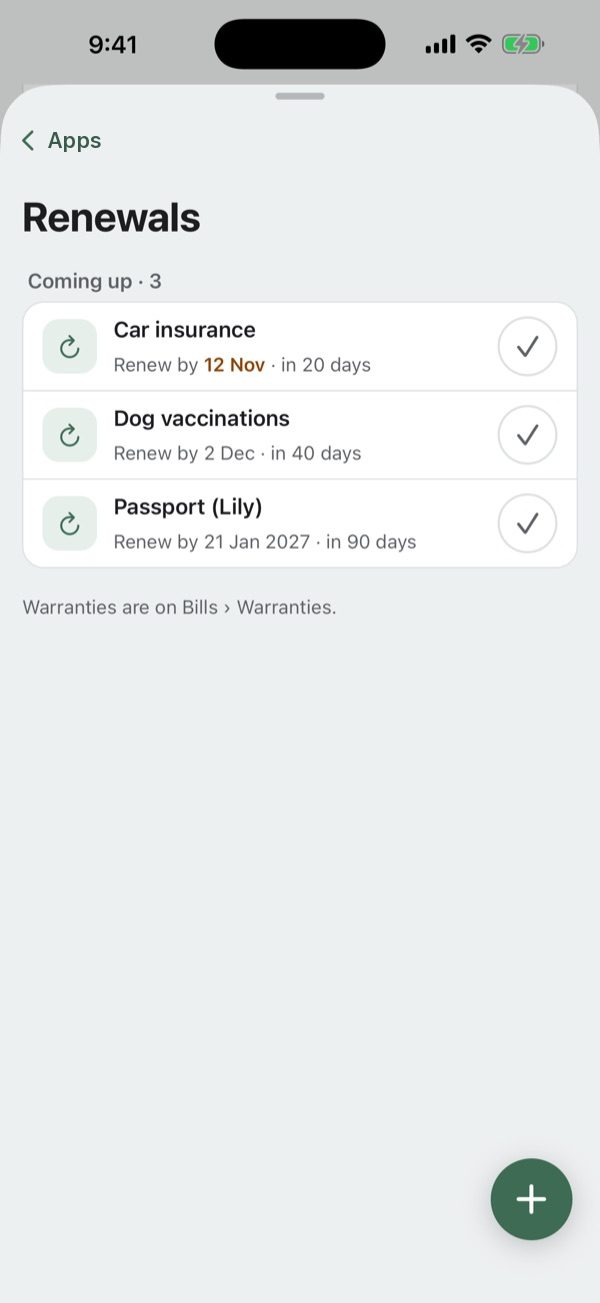
Renewals
- Coming up The soonest first.
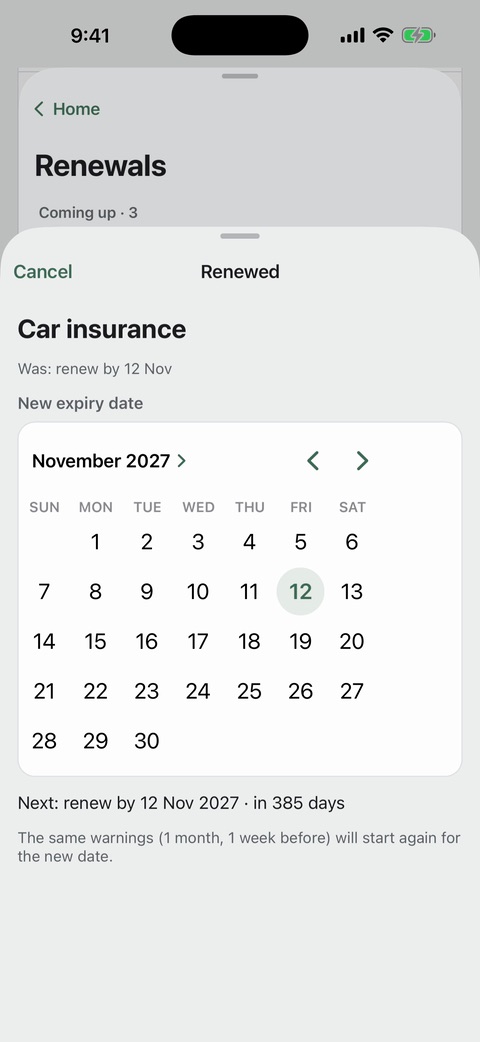
- A renewal The renew-by date and how many days are left.
- Renewed Tap it when it’s done.
- Warranties Warranties live on Bills, under Warranties.
See it work
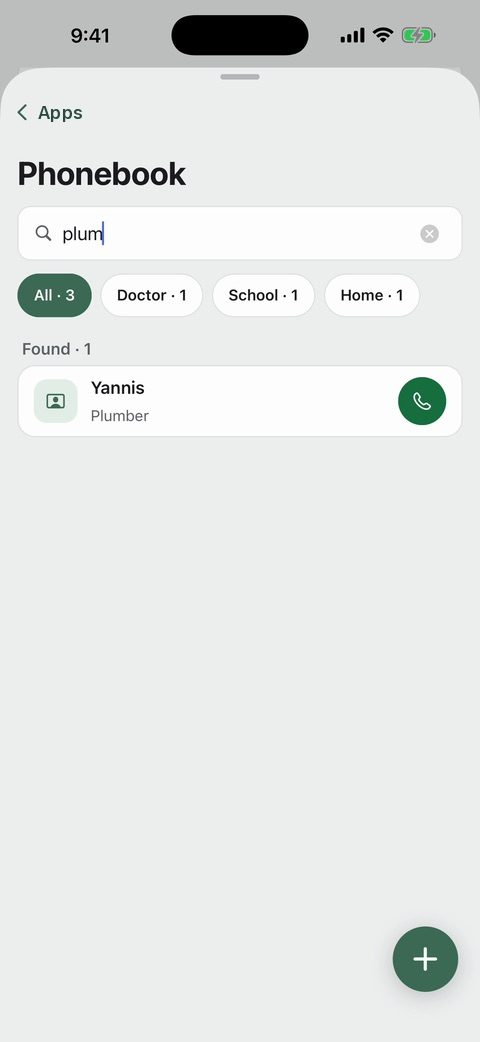
Phonebook One shared list of useful numbers: the doctor, the school, the plumber. Tap the green + to add one.
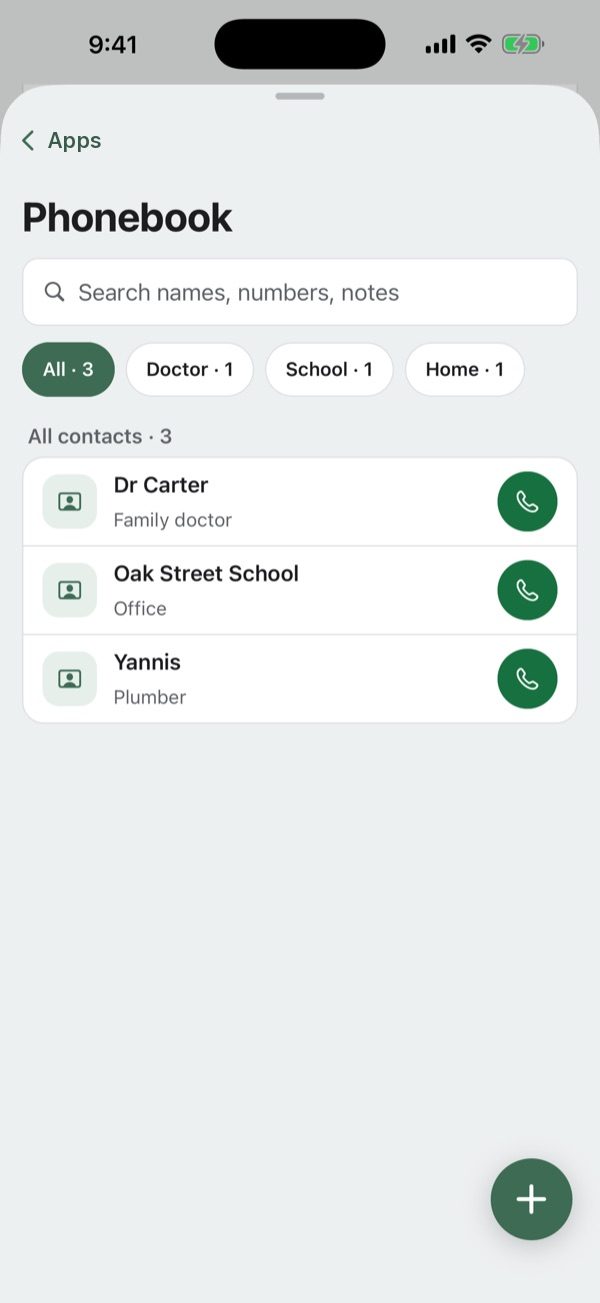
The Phonebook
- Search Find someone by name, role, number or note.
- Showing All contacts, or one kind: doctors, school, home…
- A contact Tap it for E-mail, Map and Edit.
- Call Call them straight away.
See it work
Location Where your people are, as a place name, only if each person switches it on.
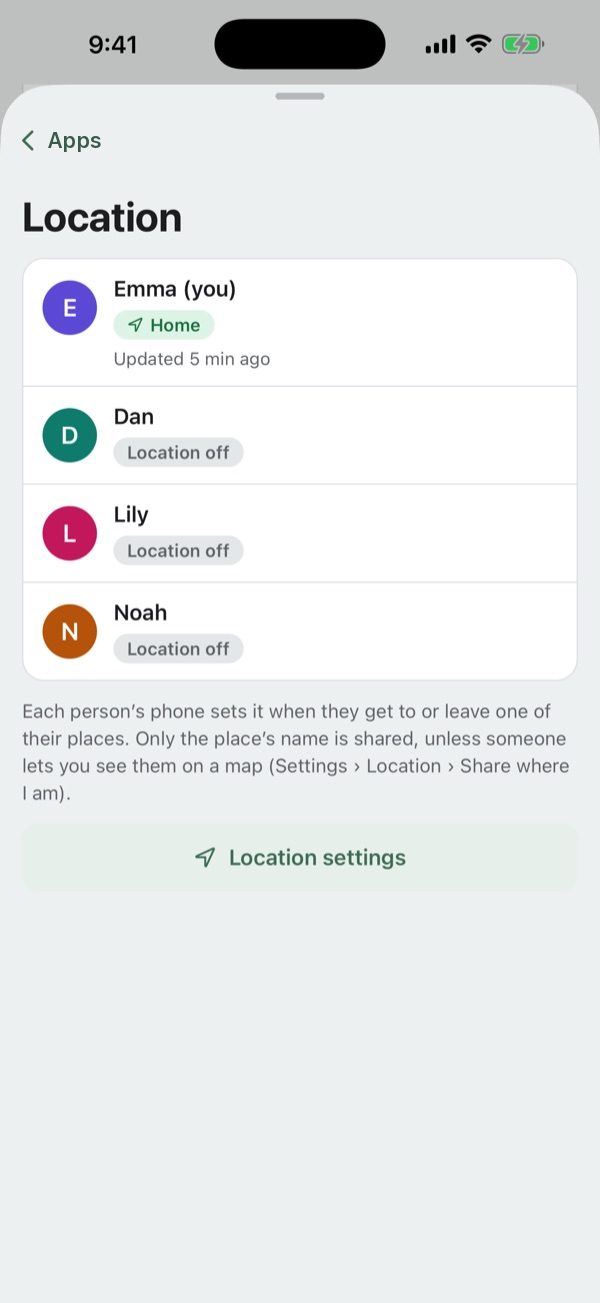
Location
- Your people Each person and the place they are at: Home, Work, School, or Out.
- The place Just the name of the place, like Home.
- Location off Each person switches Location on for themselves. Off means nothing is shared.
- Only the name Each phone sets it when they get to or leave a place. The spot itself stays on their phone.
- Location settings Your places, leave or arrive reminders, and who may see you on a map.
Private vault A locked place only you can open, with Face ID. Not even the Admins can read it.
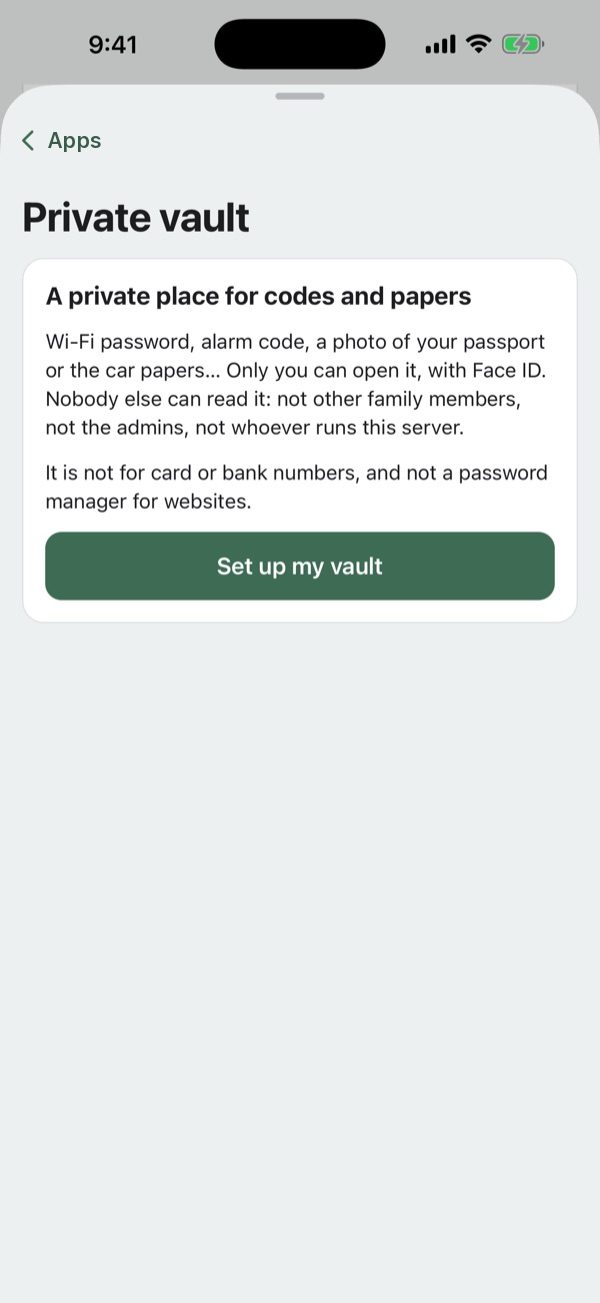
Your vault
- What it is Wi-Fi password, alarm code, a photo of the car papers: only you can open it.
- Not for everything Not for card or bank numbers, and not a password manager for websites.
- Set up my vault You set it up once with Face ID. It is locked on your phone before anything leaves it.
Still not sure?
Open HelpHelp has answers to the questions families ask most, from snoozing to the private vault.